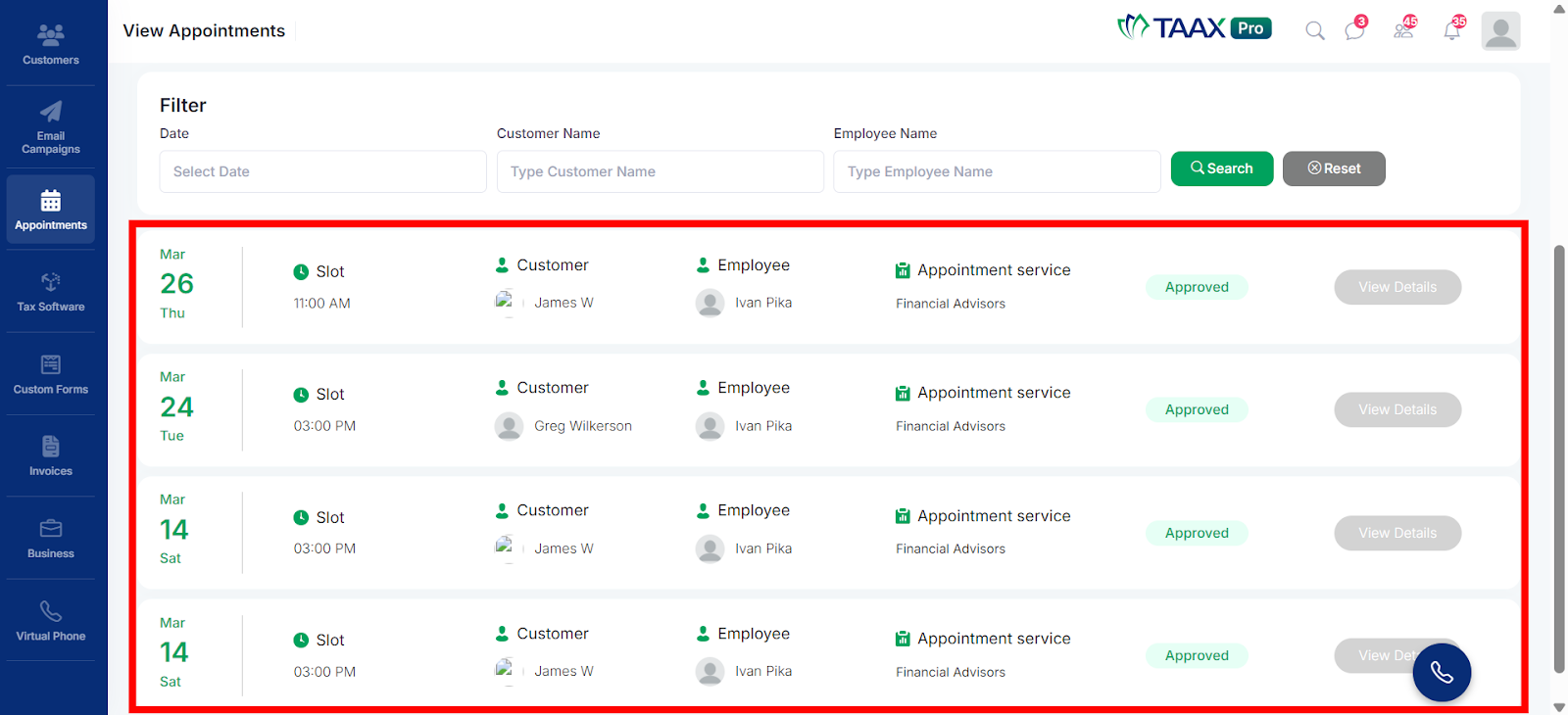
The Book New Appointment feature in TAAX Pro allows users to schedule appointments for customers directly from the platform. It helps businesses organize meetings, consultations, or service sessions by selecting the date, time, customer, service, and optional questionnaire.
Once an appointment is created, it is saved in the Appointments module, where users can easily view, manage, and track all scheduled appointments along with their details such as customer, service, and appointment status.
Navigation
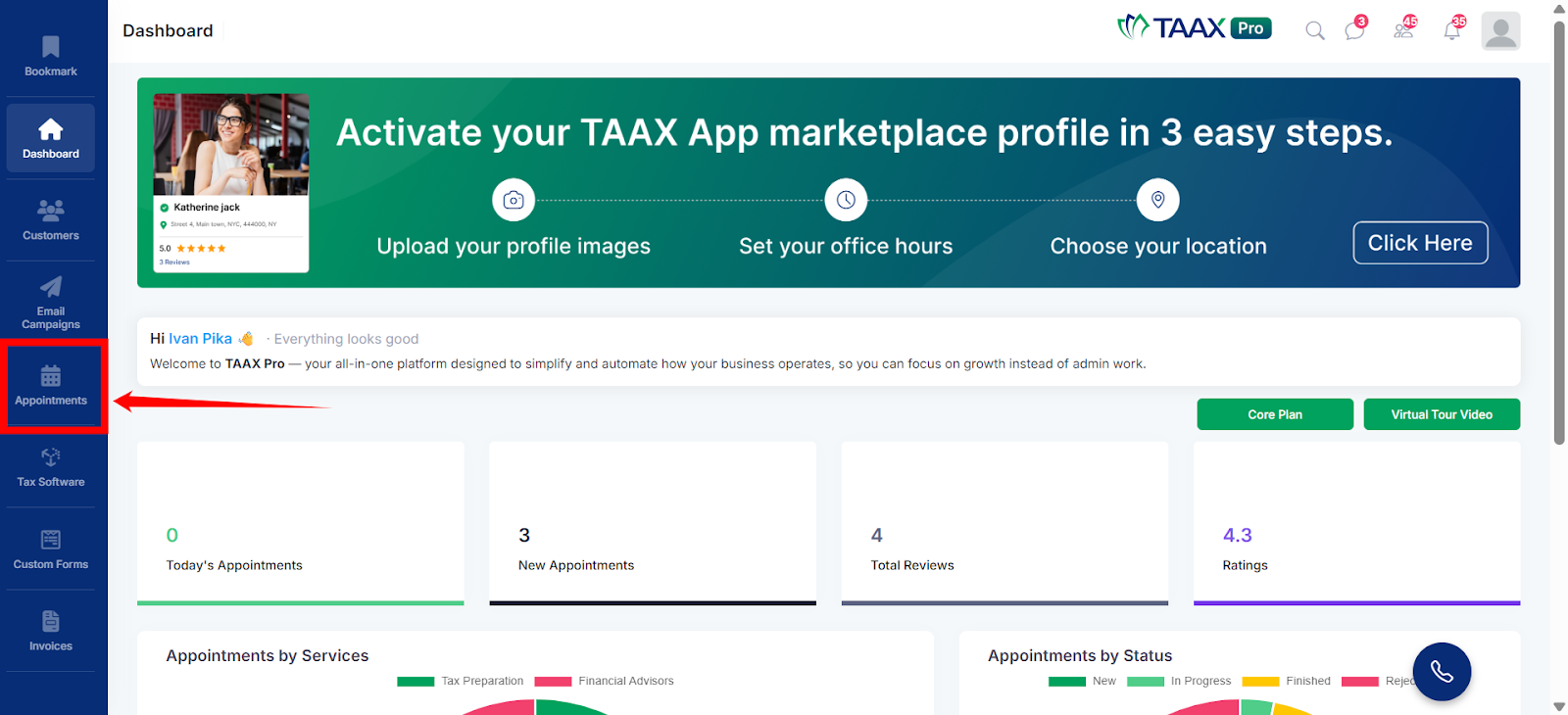
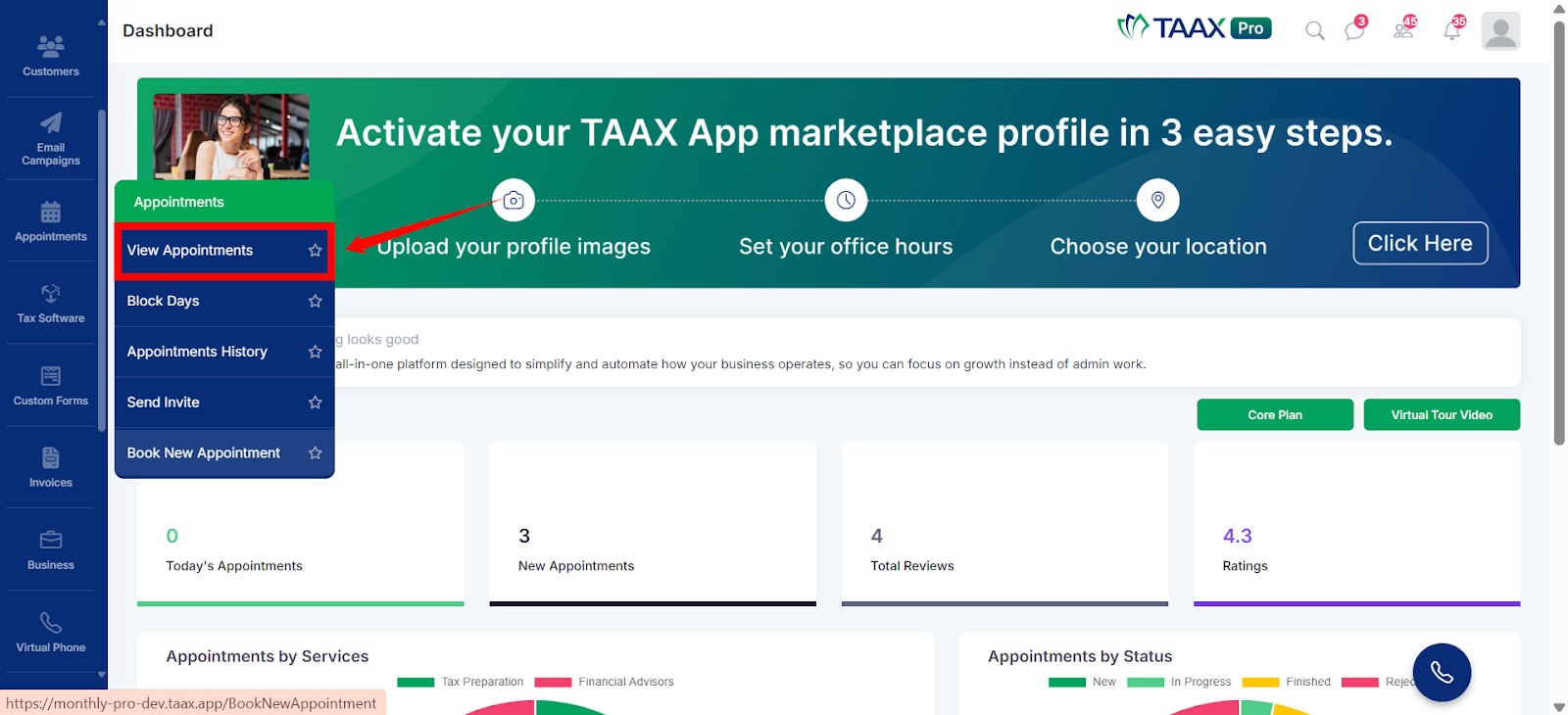
Step 1: Login into your TAAX Pro account and from the left navigation panel, click Appointments.
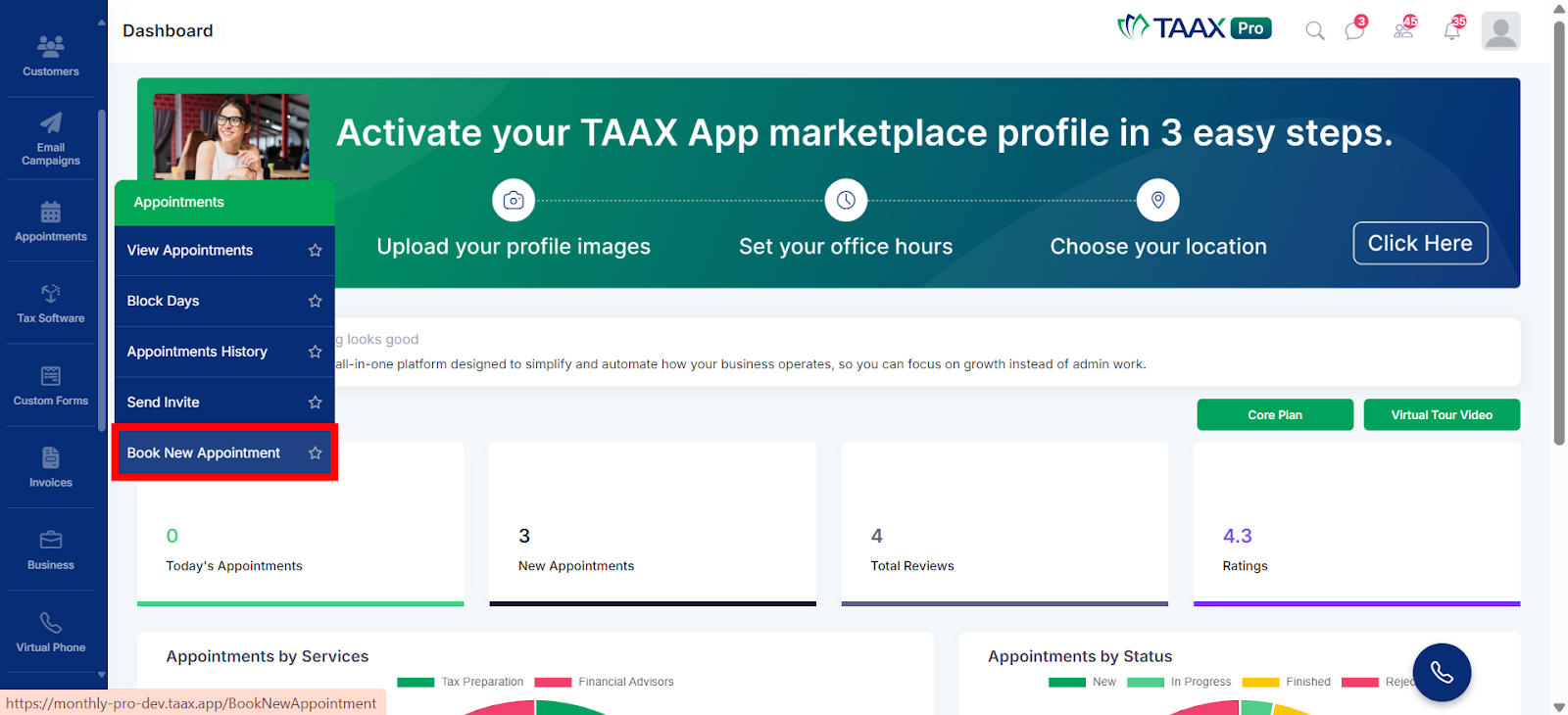
Step 2: In the Appointments menu, select Book New Appointment.
The system will open the Create Appointment page where you can enter the appointment details.
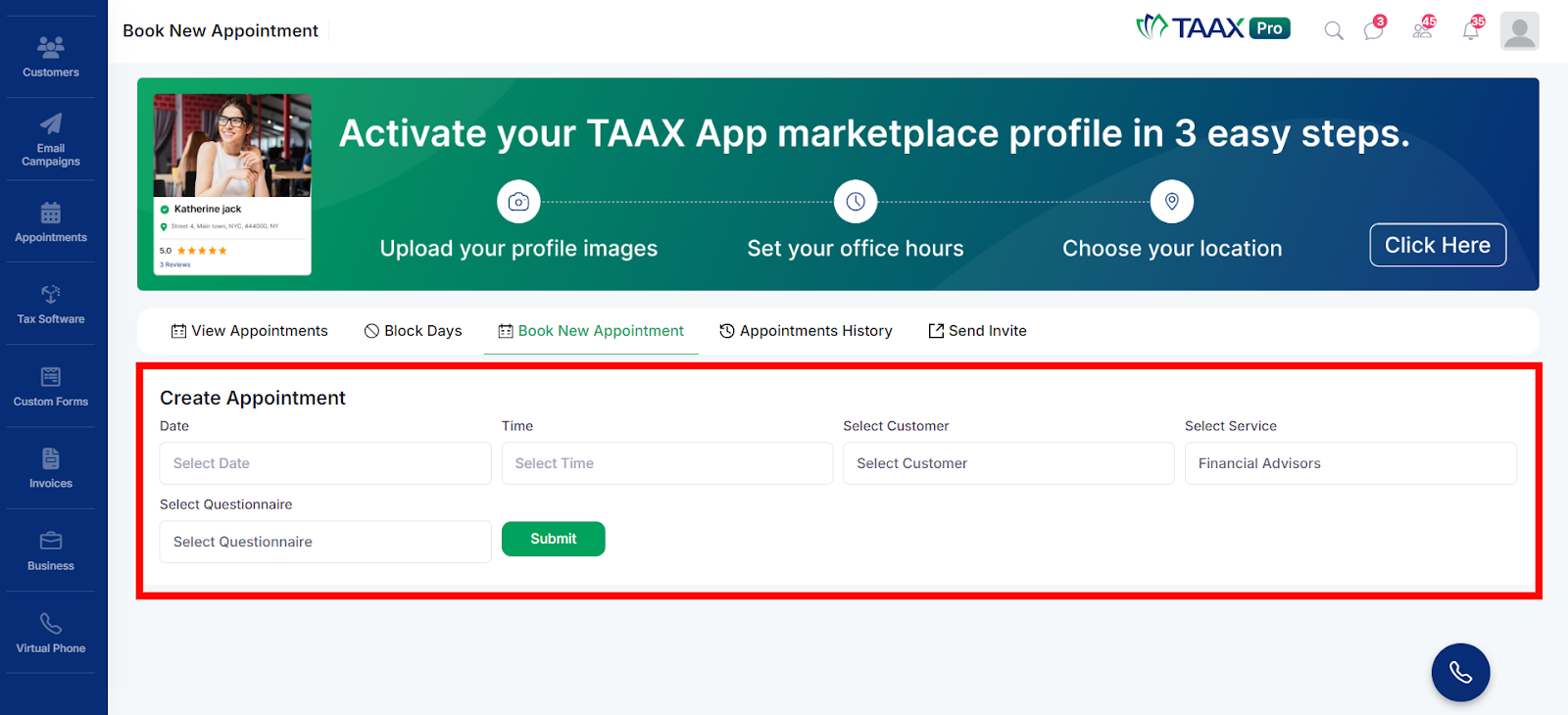
Create a New Appointment
To schedule an appointment, fill in the required fields in the Create Appointment form. The table below explains each field used when booking a new appointment.
|
Field Name |
Description |
Example |
|
Date |
Select the date on which the appointment will be scheduled using the calendar picker. |
Mar 24, 2026 |
|
Time |
Select the time slot for the appointment. |
04:00 PM |
|
Select Customer |
Choose the customer for whom the appointment is being booked. If the customer does not exist, a new one can be created. |
James W |
|
Select Service |
Select the service that will be provided during the appointment. |
Financial Advisors |
|
Select Questionnaire |
Choose a questionnaire that the customer should complete before the appointment. |
Bookkeeping |
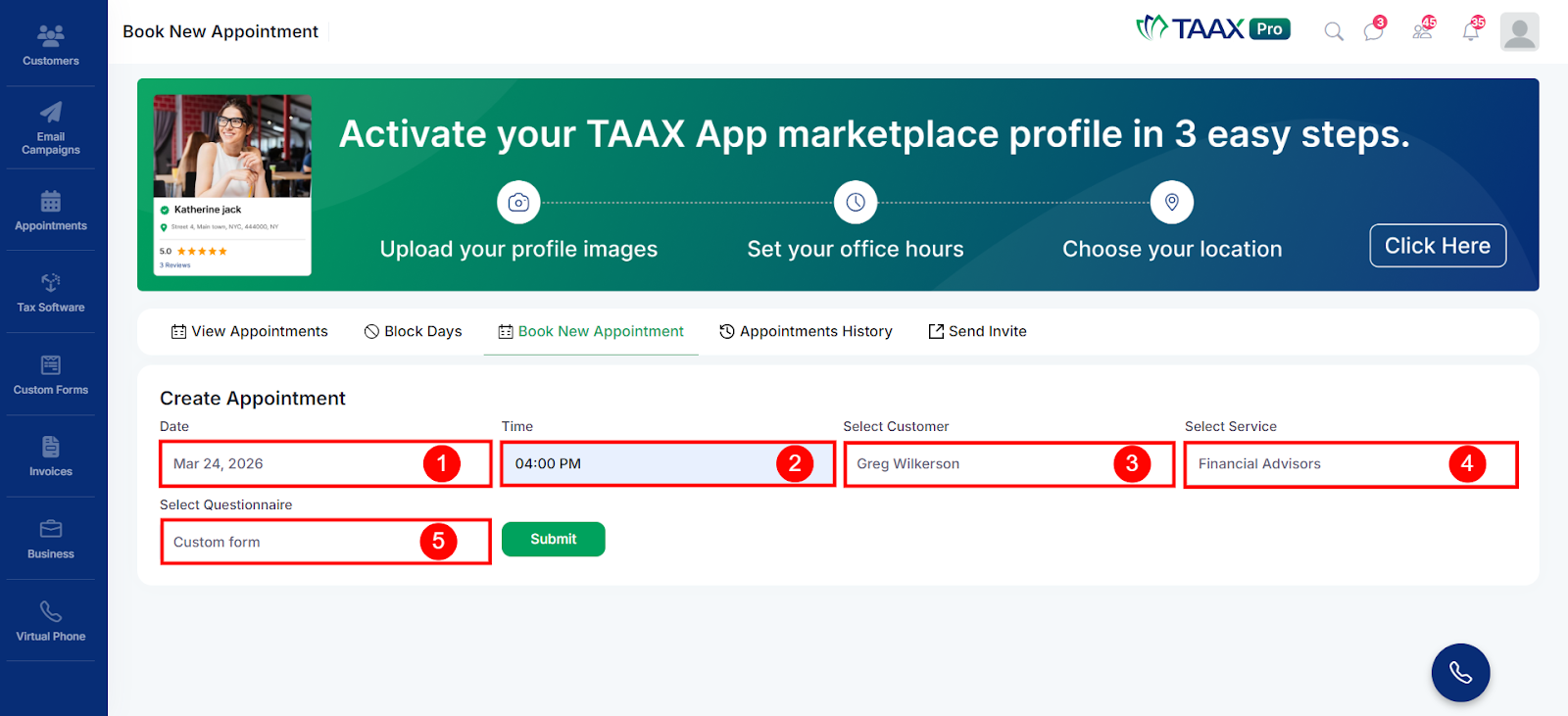
Step 6: After entering all the required details, click Submit to create the appointment. The system will process the request and save the appointment in the platform.
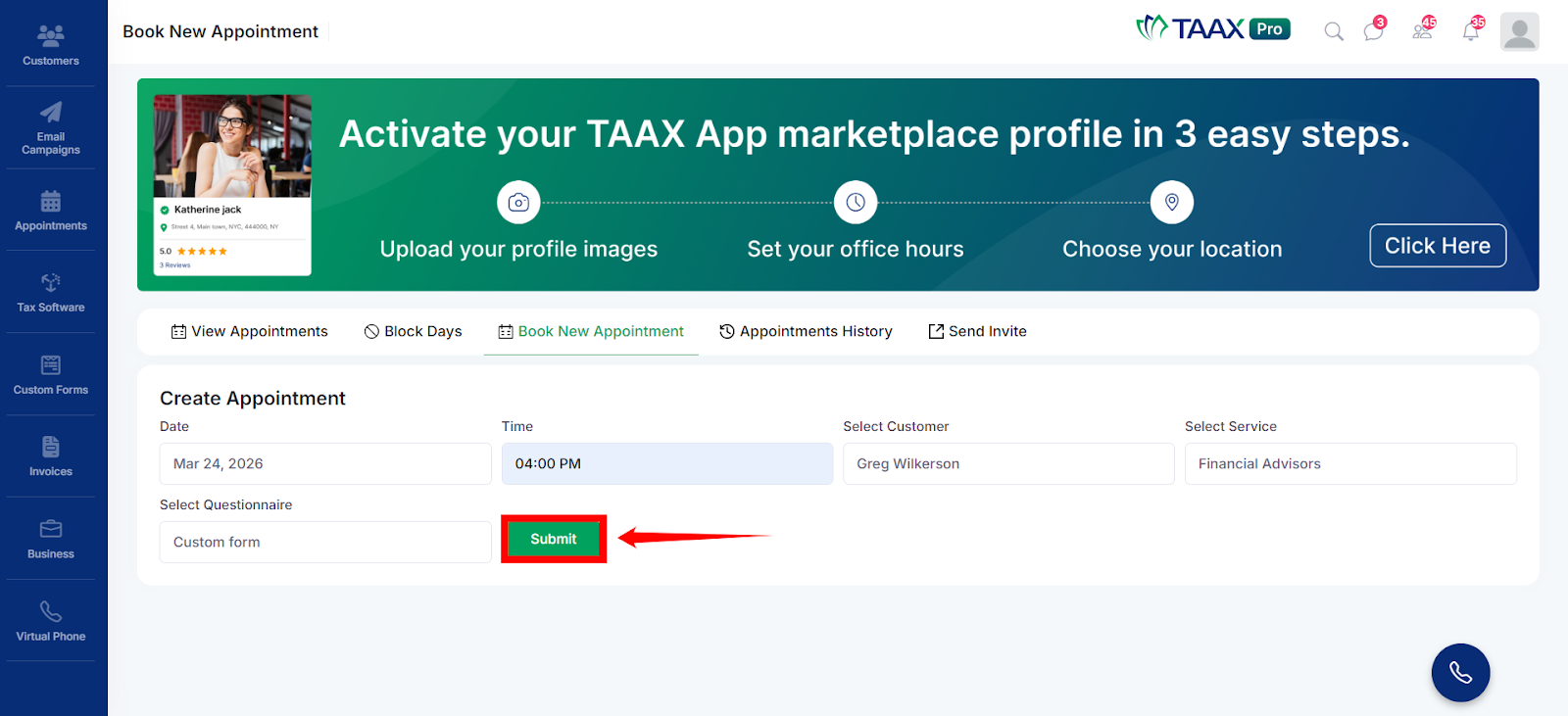
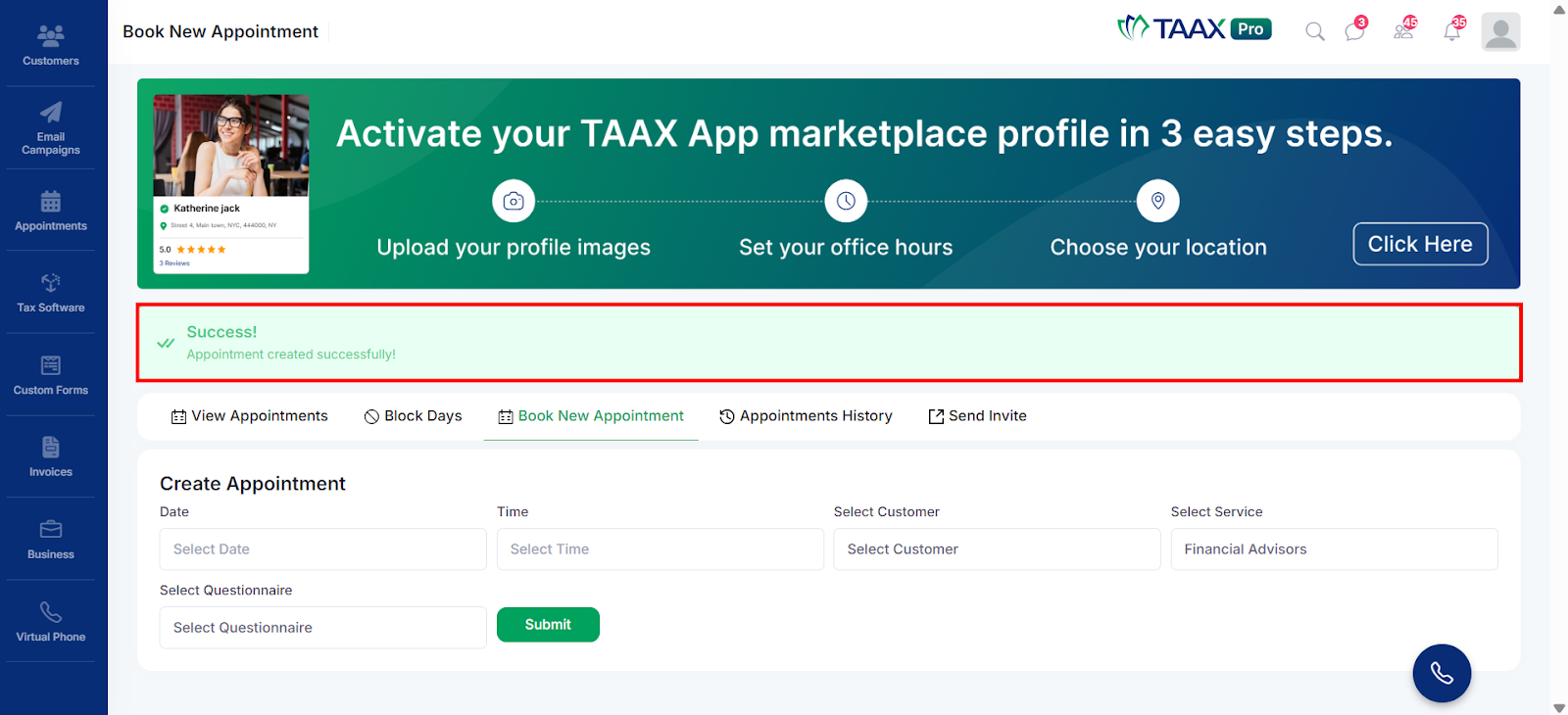
After submitting the form, a confirmation message “Success! Appointment created successfully.” appears, indicating that the appointment has been scheduled and can now be managed from the Appointments section.
View Appointments
After creating a new appointment, you can view and manage it from the View Appointments section. This page displays a list of all scheduled appointments along with their details such as date, time, customer, employee, and service.
Step 1: From the left sidebar, navigate to Appointments → View Appointments.
Step 2: The page displays a list of all the booked appointments with details such as date, time slot, customer, employee, service, and status.