Email templates allow you to create predefined email messages that can be reused when sending emails through the platform. Instead of writing the same content every time, you can create a template once and use it whenever you need to send a similar email to customers.
Using templates helps keep your communication consistent and saves time when creating email campaigns. Once a template is created, it can be easily selected and used whenever required.
Let’s walk through the step-by-step guide on how to create an email template on the TAAX Pro platform.
Step 1: From the Dashboard, navigate to Email Campaigns in the left-side navigation panel and click Email Templates
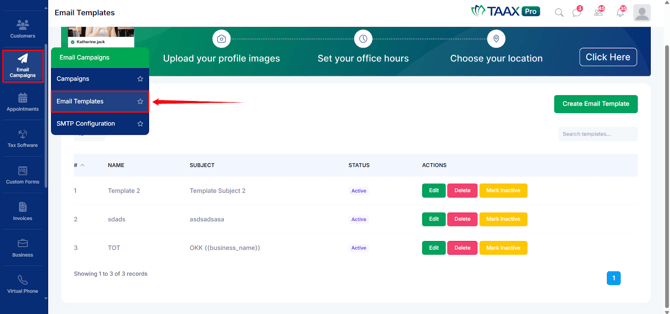
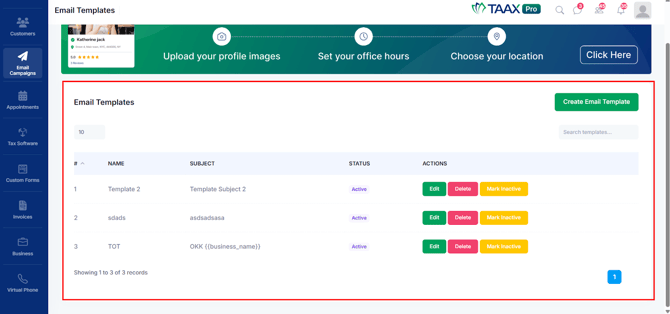
Step 2: After clicking the Email Templates option, the Email Templates page will open. Here, you can view all existing email templates along with their Name, Subject, and Status, and perform actions such as Edit, Delete, or Mark Inactive.
If you are a new user and have not created any templates yet, the list will appear empty until a template is added.
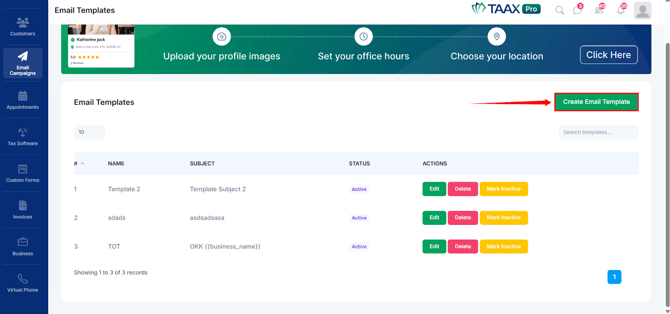
Step 3: On the Email Templates page, click on the Create Email Template button located on the top-right side of the screen. This will open the Create Email Template form, where you can define the content and settings for your new template.
Step 4: After clicking the Create Email Template button, the Email Template form will open. Here, you will see several fields that need to be filled in to create your email template. Enter the required details in each field before saving the template.
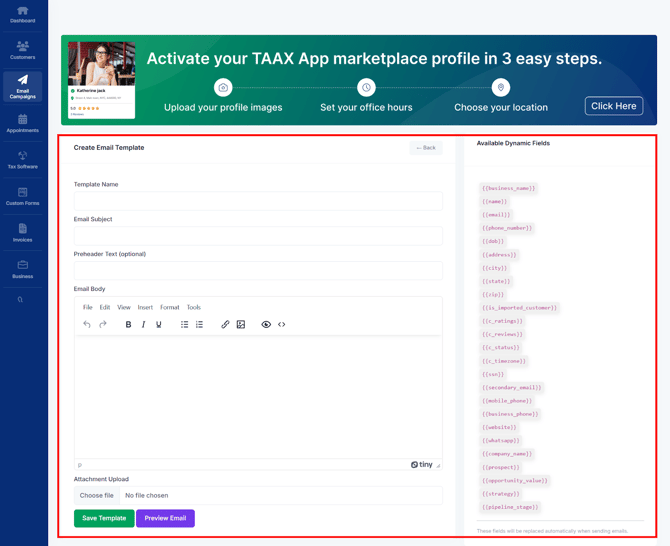
Step 5: In the Template Name field, enter a clear and recognizable name for the template. This name helps you easily identify and manage the template when selecting it for email campaigns.
For example: Tax Season Reminder
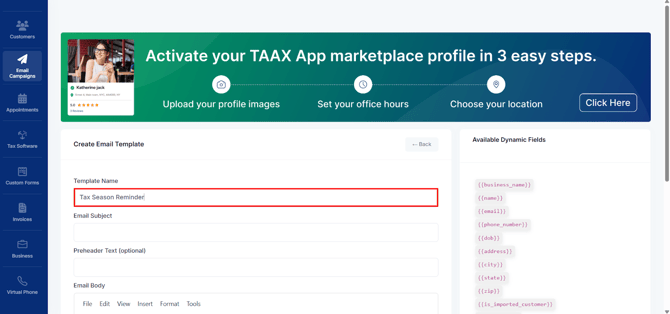
Step 6: In the Email Subject field, type the subject line that recipients will see in their inbox. The subject should clearly indicate the purpose of the email to encourage recipients to open it.
For example: Reminder: Schedule Your 2026 Tax Filing Appointment
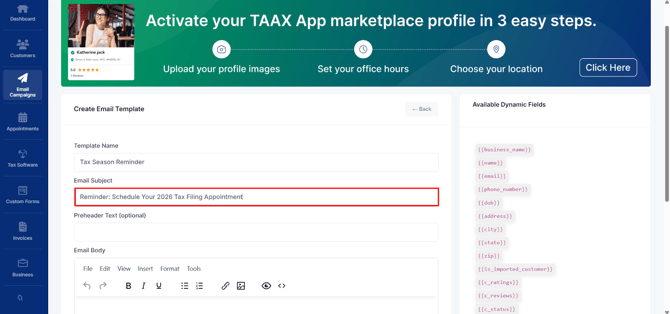
Step 7: The Preheader Text field allows you to add a short preview message that appears next to or below the subject line in many email clients. This text provides additional context about the email content and can help improve email open rates.
Although optional, adding a brief and meaningful preheader can enhance the visibility of your email.
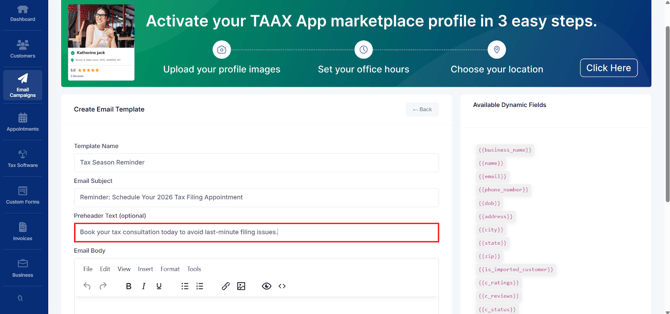
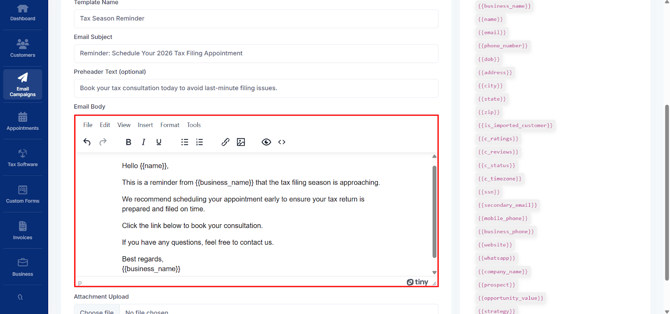
Step 8: In the Email Body section, write the main message you want to send to your recipients. You can format the text, add links, or include images using the editor.
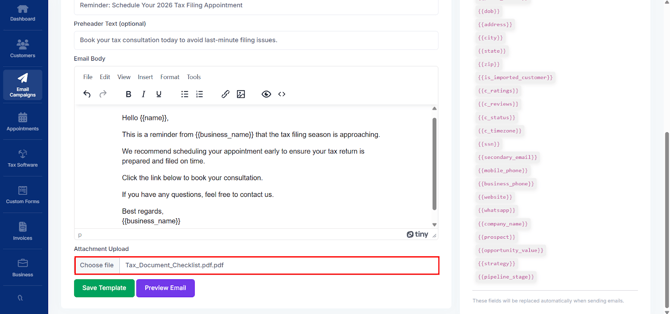
Step 9: If needed, you can upload a file using the Attachment Upload option. Click on the Choose File and select the document you want to attach. This file will be sent along with the email.
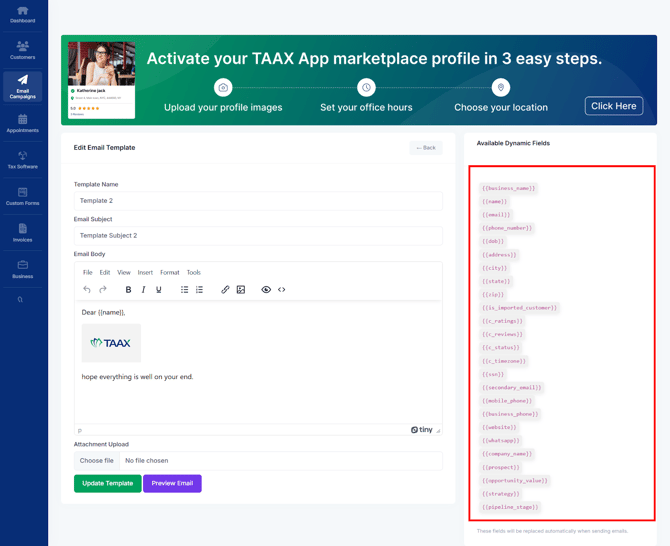
Step 10: On the right side of the screen, you will see a list of Available Dynamic Fields. These placeholders allow you to automatically insert personalized information into your email.
For example, fields like kb-article-module-5, , or will be automatically replaced with the recipient’s actual details when the email is sent. This helps personalize emails without manually editing each message.
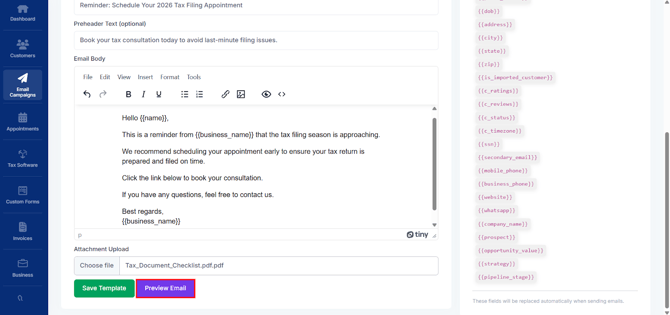
Step 11: Before saving the template, click the Preview Email button to review how the email will appear to recipients. This allows you to check formatting, text content, and layout to ensure everything looks correct.
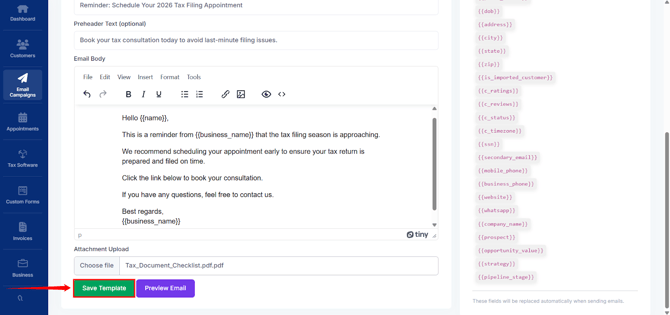
Step 12: Once you have entered all the required details and reviewed the email, click the Save Template button to store the template in the system.
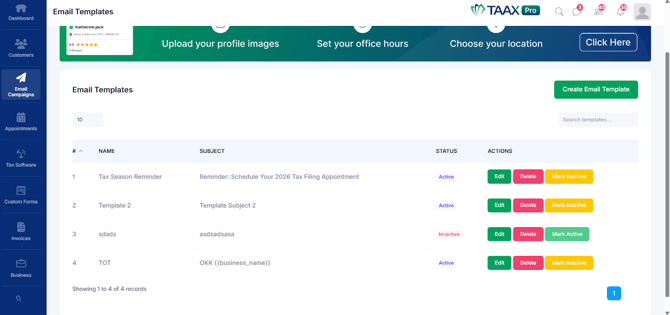
Once the template is successfully saved, it will appear in the Email Templates dashboard. Here, you can view all the templates that have been created along with their Name, Subject, and Status (Active and In-active).
Edit Your Email Template
If you need to modify an existing email template, you can edit it from the Email Templates dashboard. Editing allows you to update the template name, subject line, email body, attachments, or other details whenever changes are required.
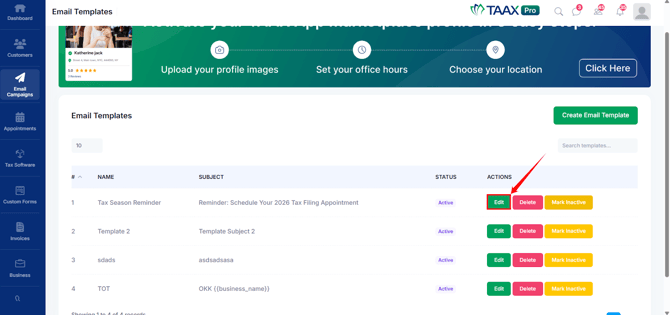
Step 1: Click the Edit option next to the email template that you want to update.
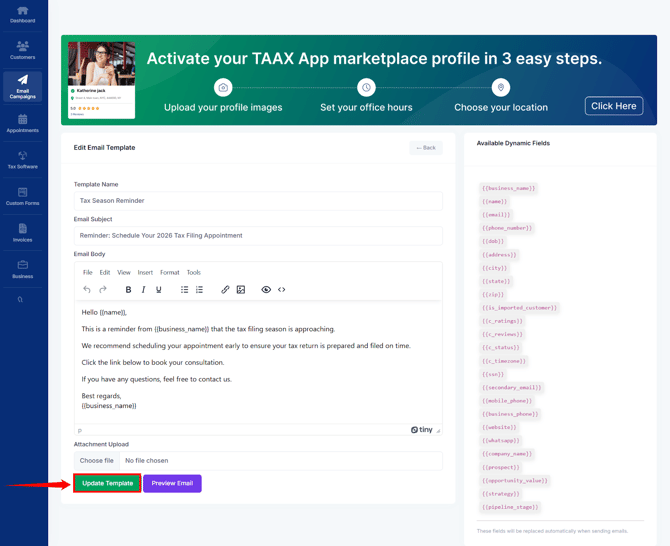
Step 2: After clicking Edit, you will be redirected to the Email Template Editor, where you can update the template details such as the subject, email body, or attachments.
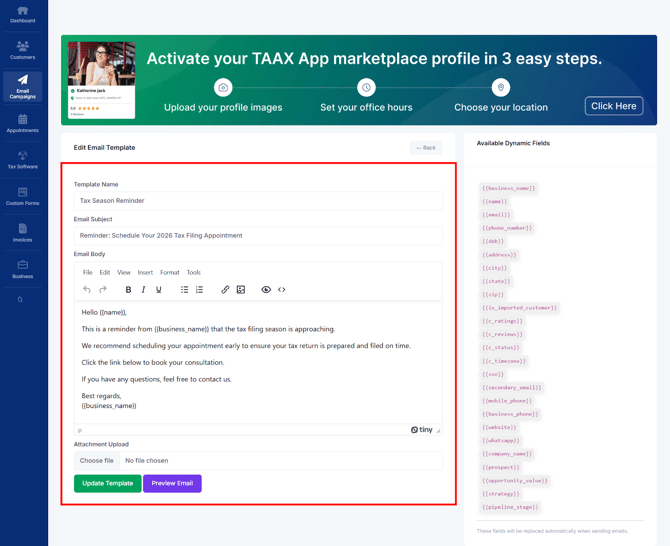
Step 3: Once you finish making the changes, click Update Template to save the updated template.
Delete Email Template
If an email template is no longer needed, you can delete it from the Email Templates dashboard. Deleting a template will permanently remove it from the email template page and it will no longer appear in the Email Templates list.
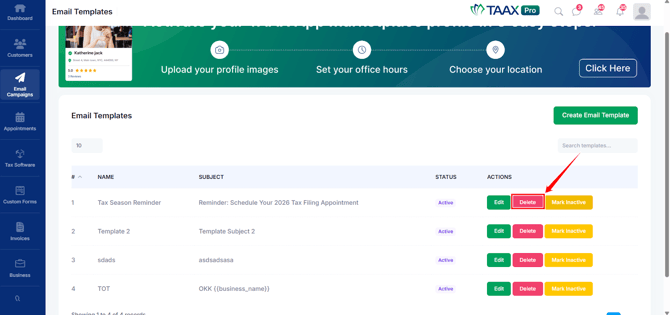
Step 1: Click the Delete option next to the email template you want to remove.
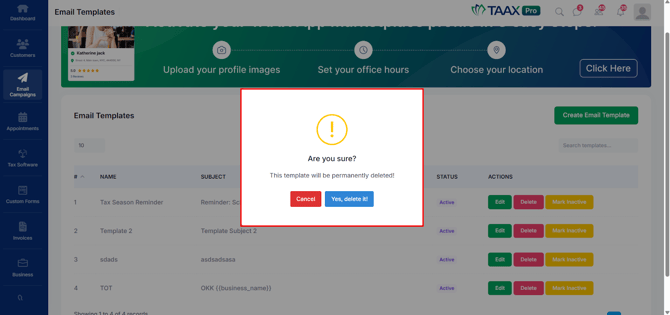
Step 2: A confirmation dialog box will appear asking if you want to delete the email template.
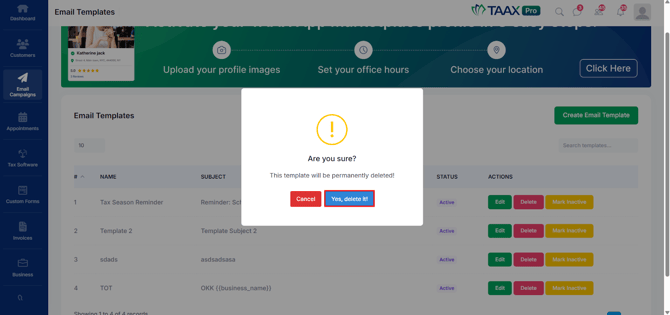
Step 3: Click the “Yes, Delete It” button to permanently delete the template from the Email Template page.
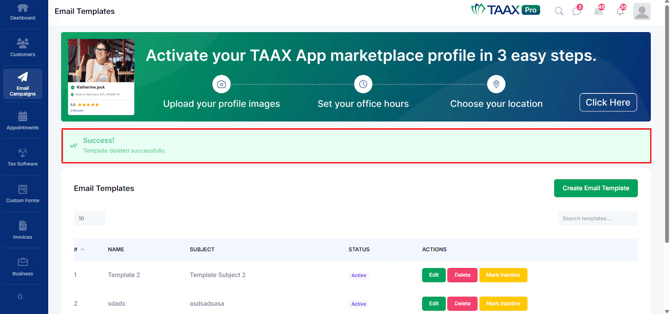
Step 4: After deleting the email template a success message will appear on the dashboard confirming that the email template has been deleted successfully. The template will also be removed from the Email Templates list.
Mark Template as Inactive
If you do not want to use a template for future campaigns but still want to keep it saved, you can mark it as Inactive. Inactive templates remain in the email template page but cannot be used in email campaigns.
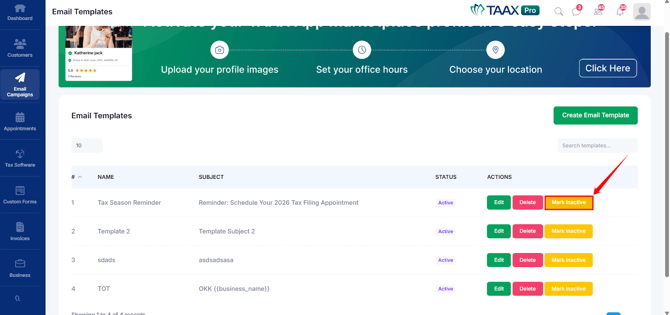
Step 1: Click the Mark Inactive option next to the template.
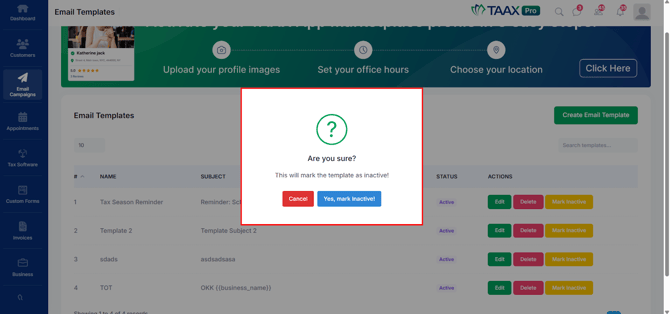
Step 2: A confirmation dialog box will appear asking if you want to mark the template as inactive.
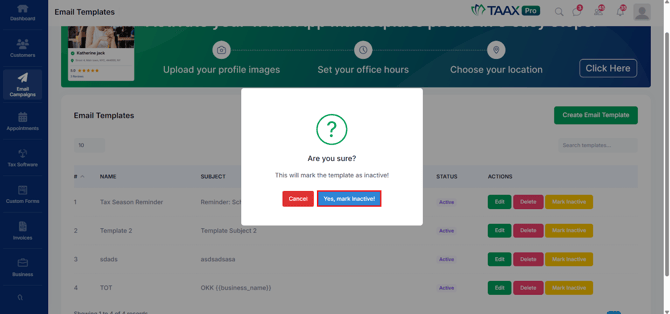
Step 3: Click the “Yes, Mark Inactive” button to change the template status to Inactive.
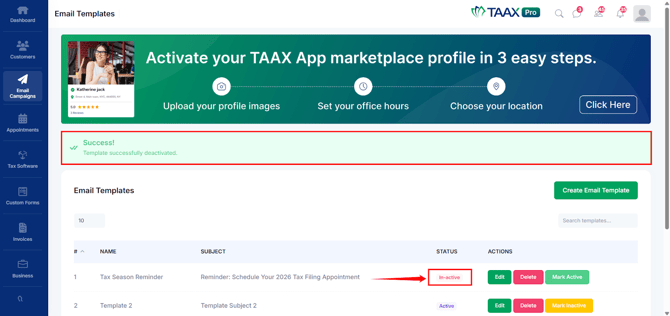
Step 4: After making the template in- active a success message will appear on the dashboard confirming that the template has been deactivated and Status of the template will also be updated to Inactive in the Email Templates list.