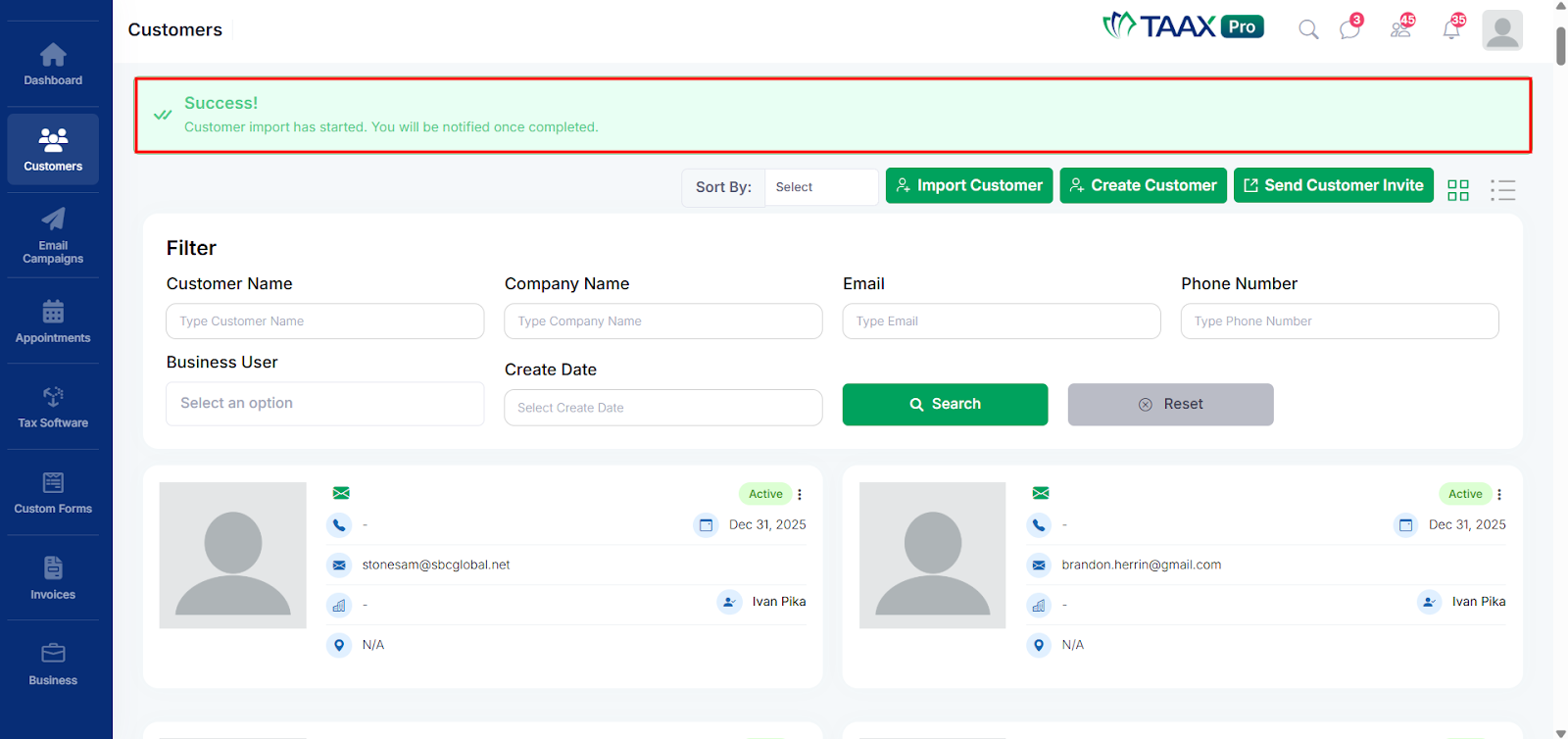
TAAX Pro allows you to import multiple customers at once using a CSV or Excel file. This feature helps you quickly add large customer lists to the platform instead of creating each customer manually.
To successfully import customers, ensure that your file contains the required fields, such as Name and Email, before uploading it to the system.
Let’s walk through the step-by-step process to import customers into the TAAX Pro platform.
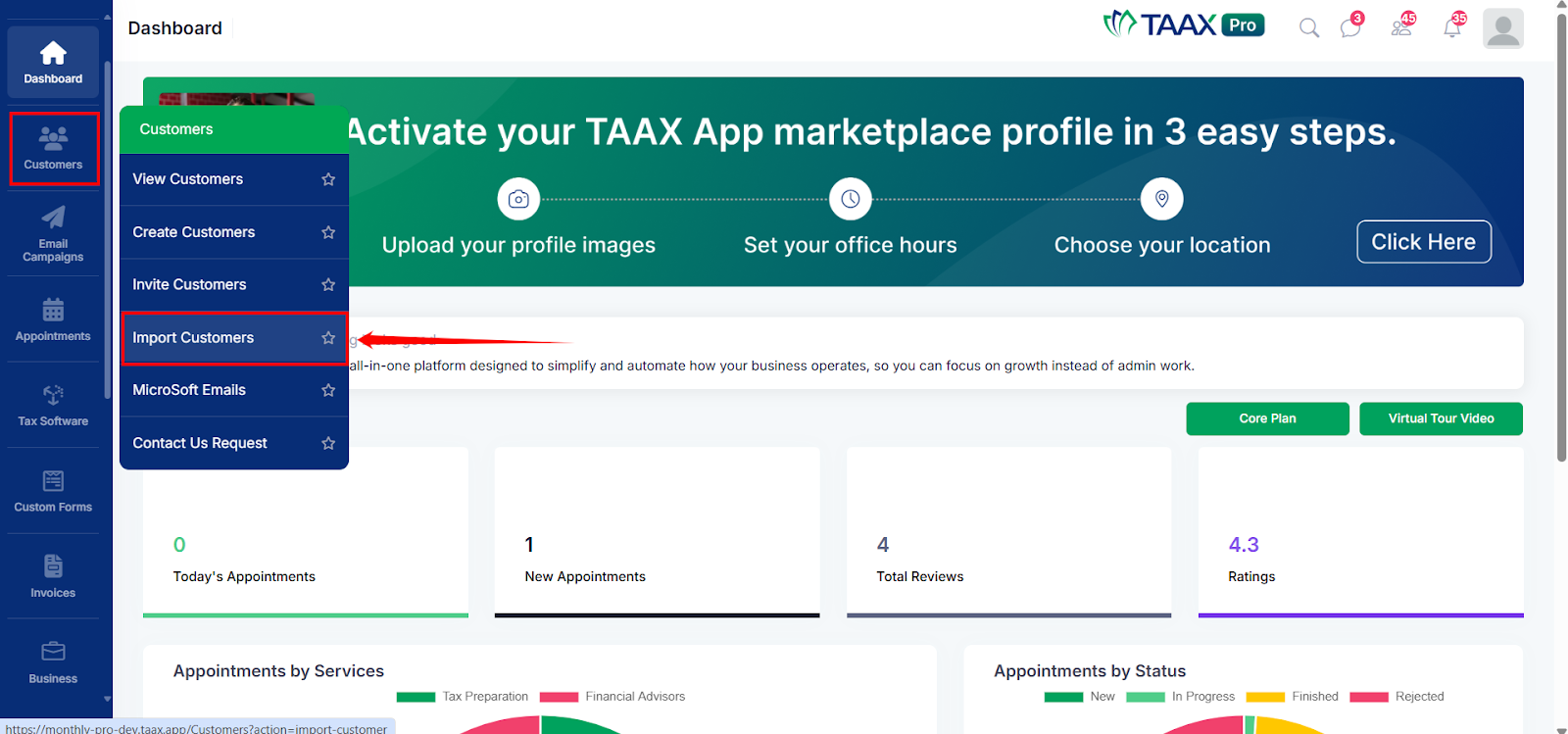
Step 1: From the left sidebar, click Customers, then select Import Customers from the menu.
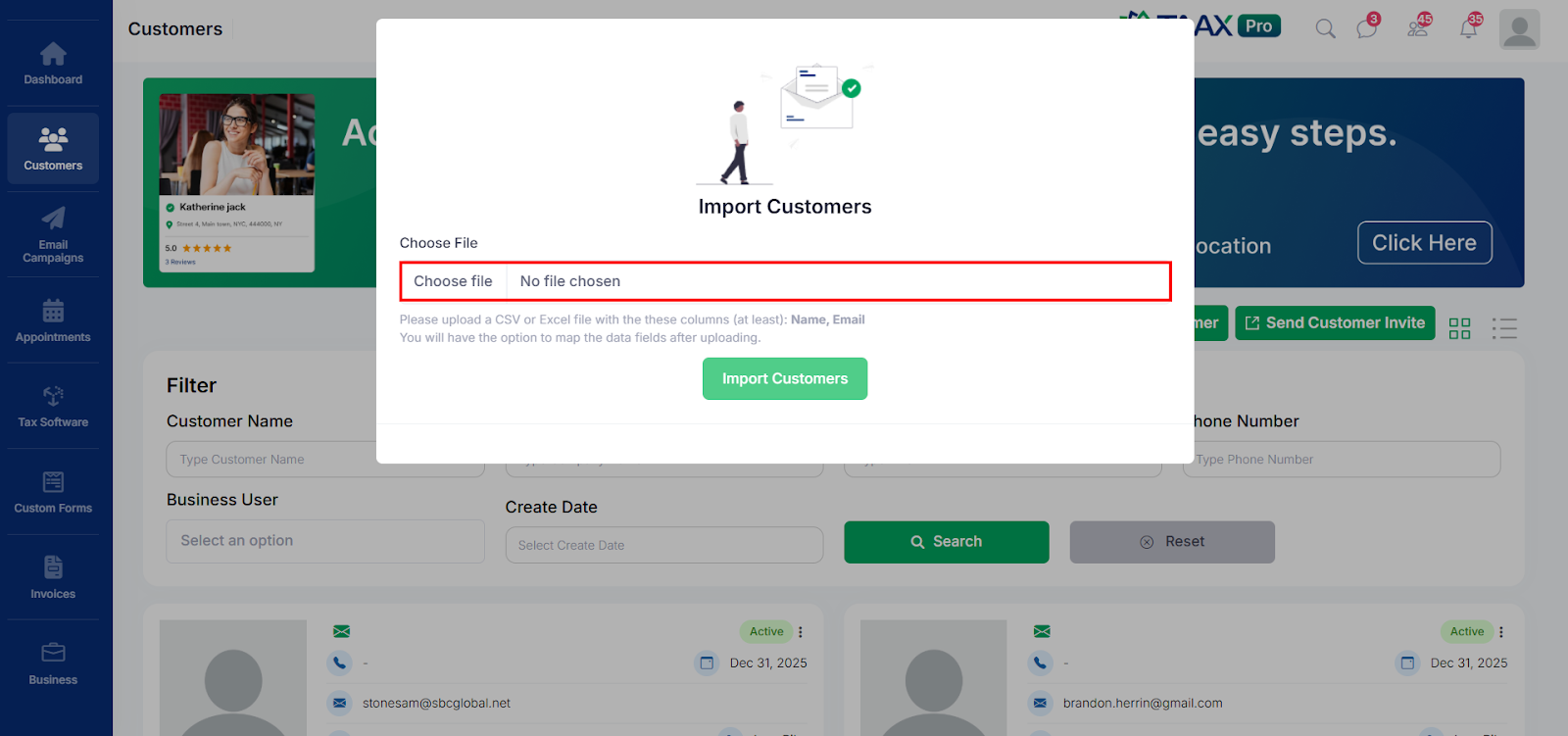
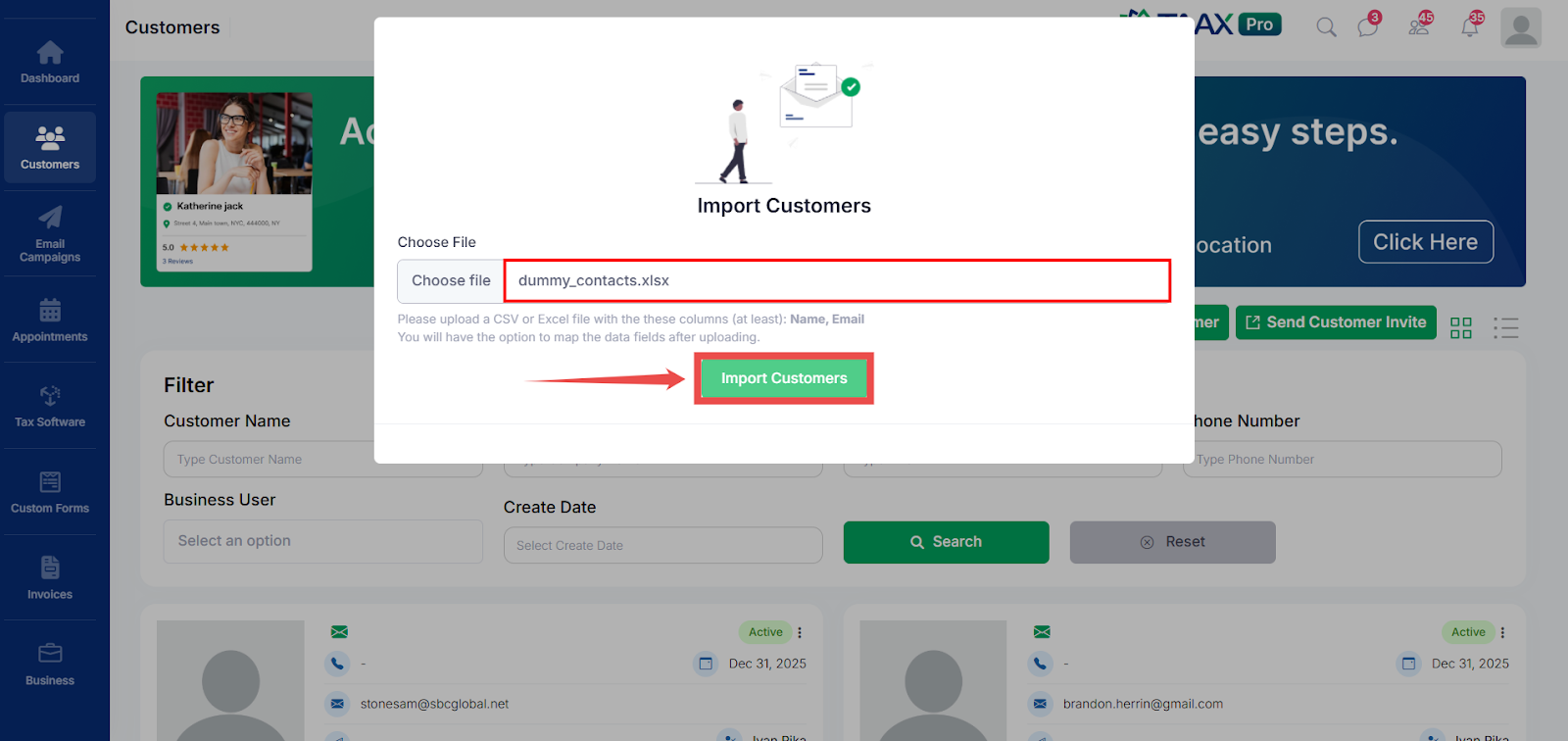
Step 2: In the Import Customers window, click Choose File to upload a CSV or Excel file from your device.
Step 3: Select the file containing the customer data. Ensure the file includes the required columns, such as Name and Email.
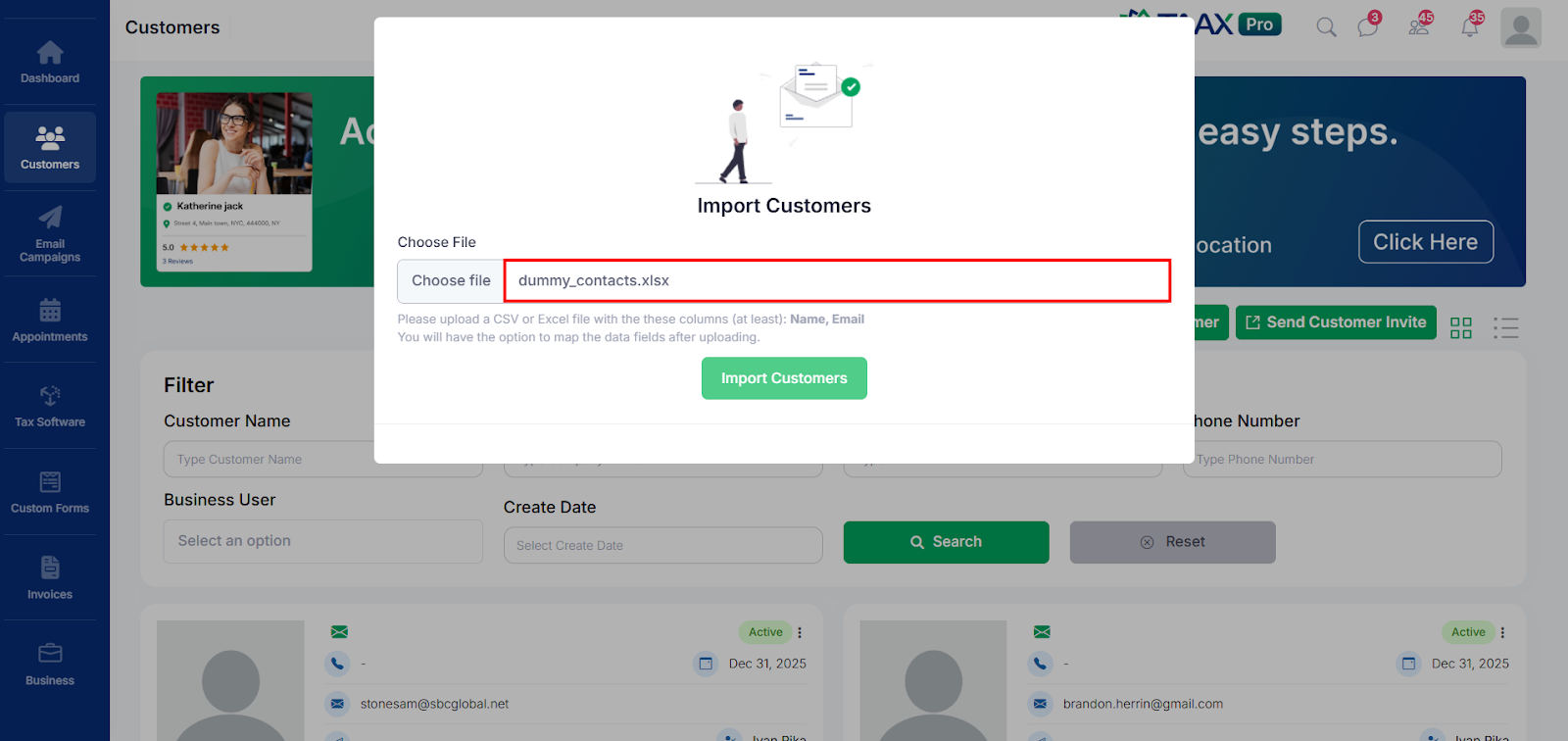
Step 4: After the file is uploaded, click Import Customers to begin the import process.
Once completed, the system will process the file and add the customers to your customer list.
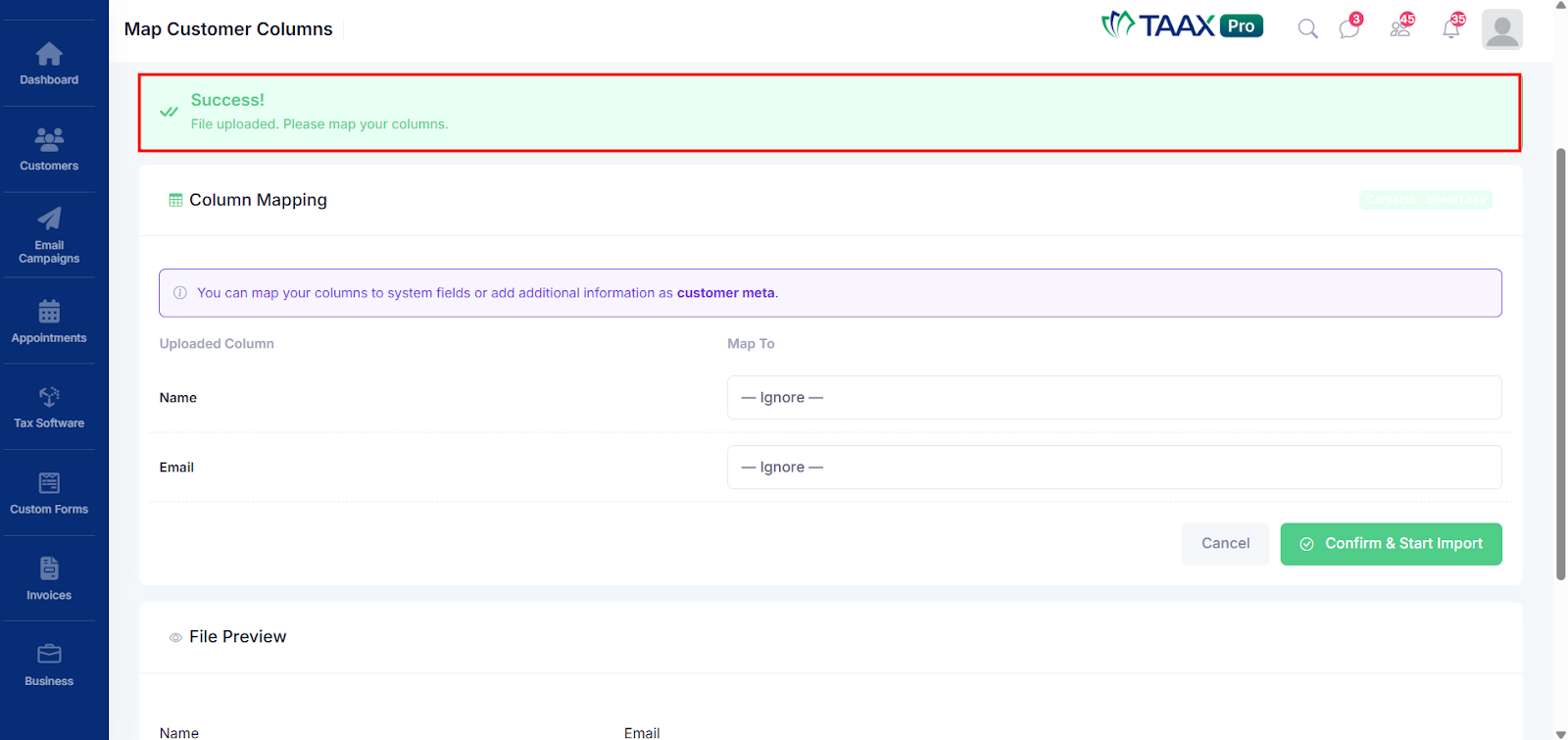
Step 5: After the customer file is uploaded successfully, a success message will appear on the screen confirming that the file has been uploaded.
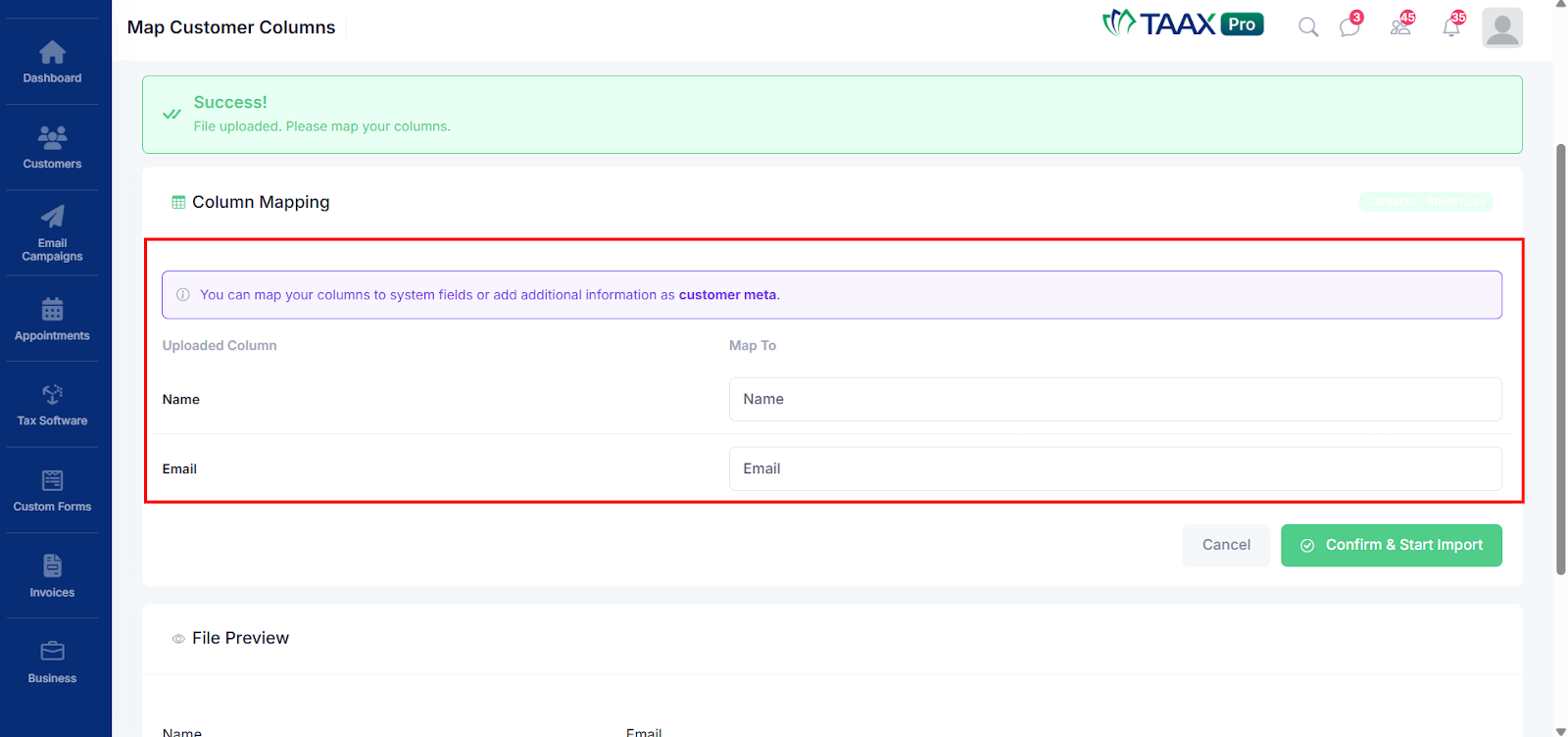
Step 6: In the Column Mapping section, map the uploaded columns to the corresponding system fields. For example, map the Name column to the Name field and the Email column to the Email field so the data is correctly imported into the system.
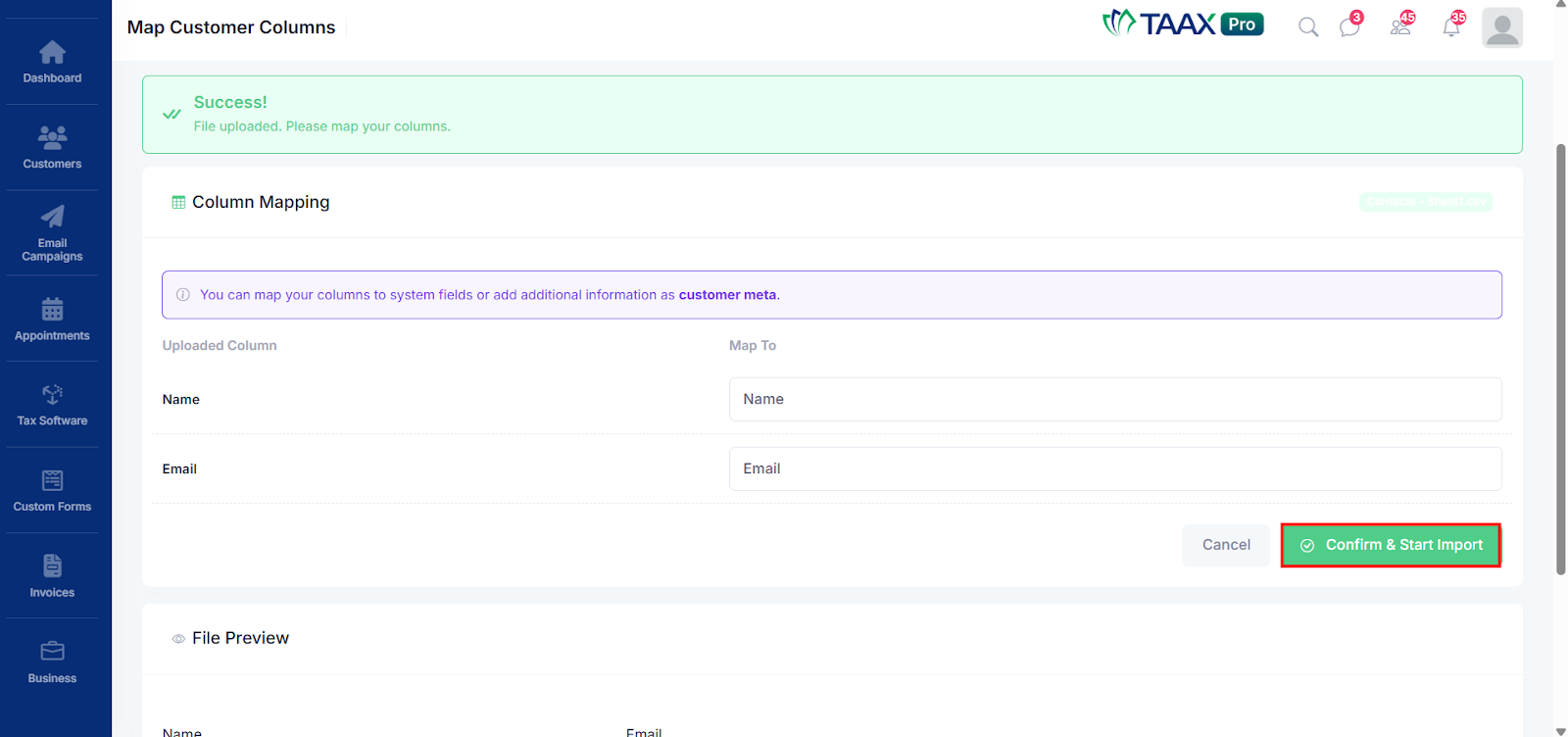
Step 7: After mapping the columns, click the “Confirm & Start Import” button to begin importing the customer data into the system.
Step 8: After the import is completed, a success message will appear on the screen confirming that the customer data has been imported successfully.