The Import Data feature in TAAX Pro allows users to upload deal files into the system so that commission data can be processed and recorded. This feature helps ensure that all transaction records are imported accurately and can be tracked for reporting, verification, and payout calculations. Users can also monitor the processing status of uploaded files and review any records that fail during the import process.
The following steps explain how to access and use the Import Data feature in TAAX Pro:
Navigation
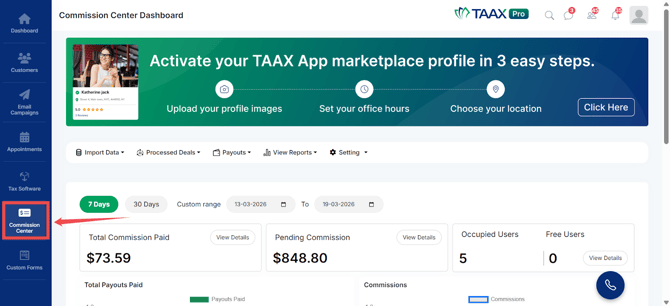
Step 1: From the Dashboard, navigate to the left-side navigation panel and click on Commission Center.
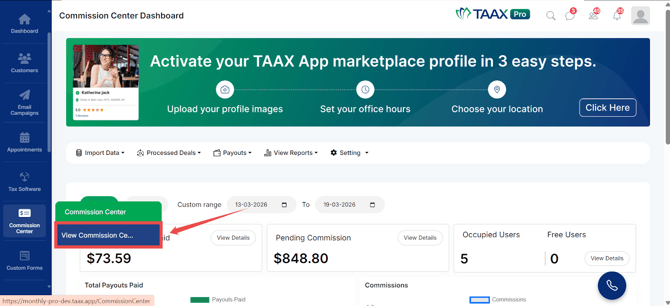
Step 2: Click on View Commission Center. The Commission Center Dashboard will open.
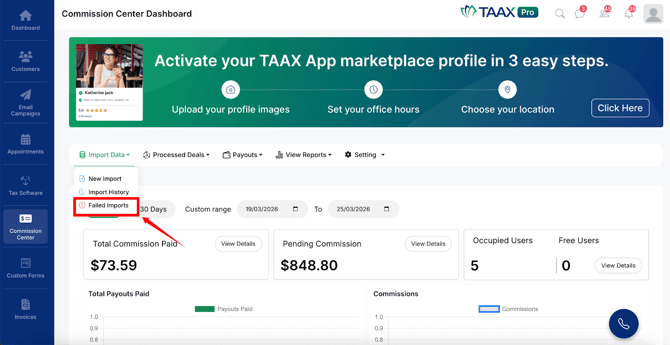
Step 3: On the Commission Center Dashboard, navigate to the top menu and click on Import Data.
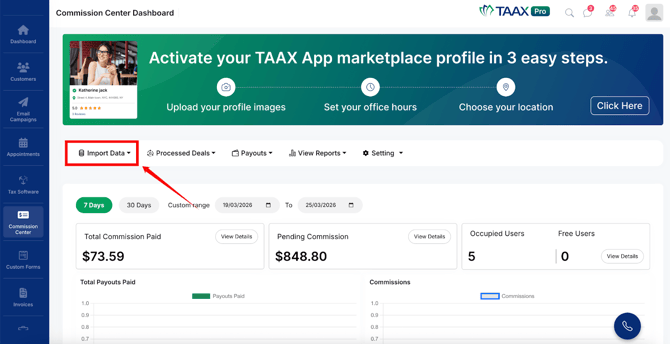
After clicking Import Data, the system will display the following import options:
- New Import – Upload new deal files into the system.
- Import History – View all uploaded files and track their processing status.
- Failed Imports – Review records that failed during the import process.
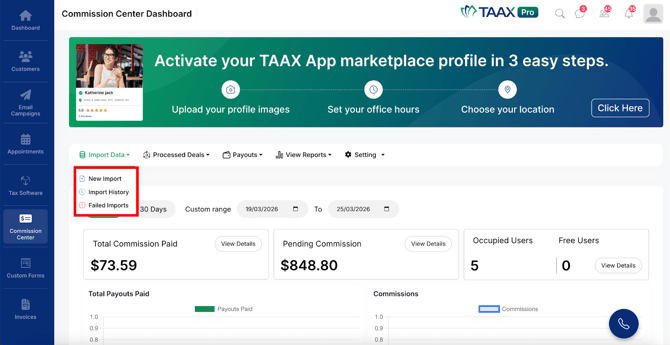
New Import
The New Import option allows users to upload deal files into the system. Once uploaded, the system processes the file and imports the data so it can be used for commission tracking and reporting.
Step 1: Navigate to Import Data and click on the New Import option.
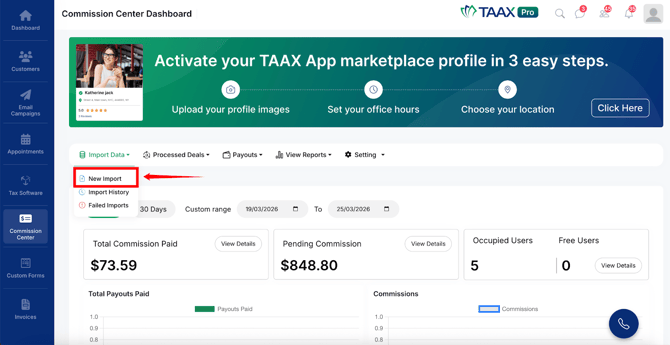
Step 2: The Import Deals page will open. Click on Select File to browse and choose a file from your computer.

Alternatively, you can drag and drop the file into the upload area.
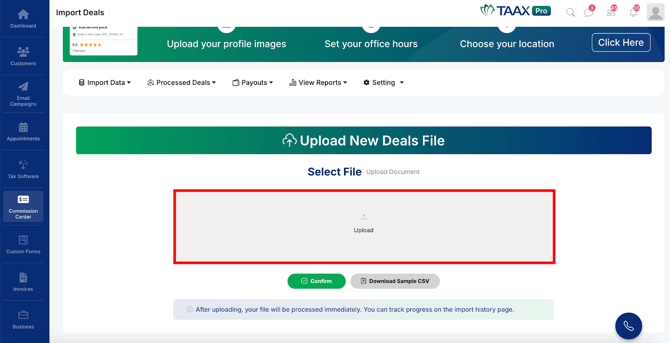
NOTE: The file must be in CSV format and should follow the required data structure.
Step 3: (Optional) Click Download Sample CSV to download a sample file that shows the correct format required for uploading data.
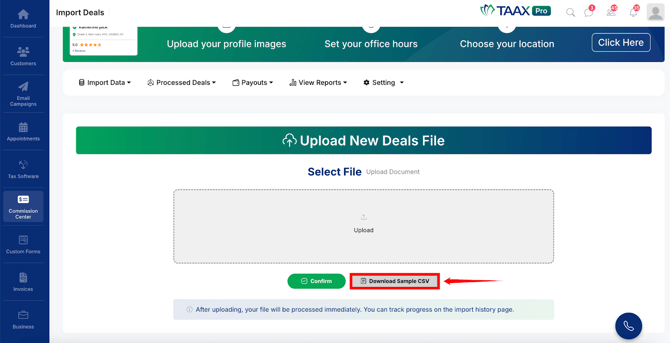
Step 4: After selecting the file, click the Confirm button to upload the file.
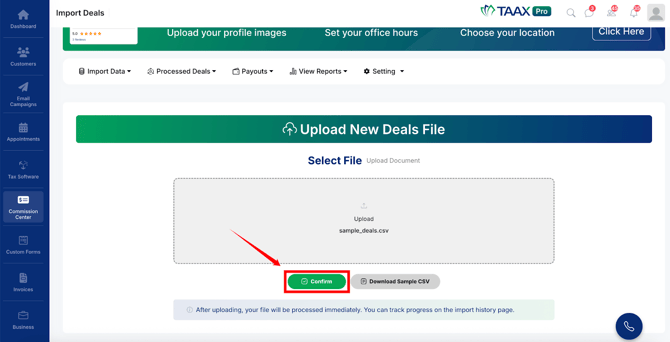
Once the file is confirmed, the system will automatically begin processing the uploaded file.
Import History
The Import History section allows users to view and track all files that have been uploaded into the system. This helps users monitor the progress of data processing and confirm whether the import was successful.
Step 1: Navigate to Import Data and click Import History to open the list of all uploaded import files.
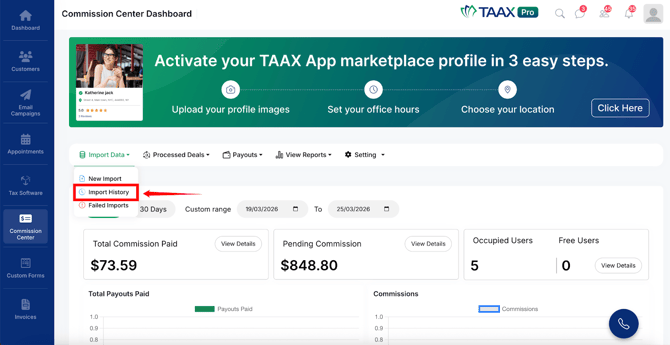
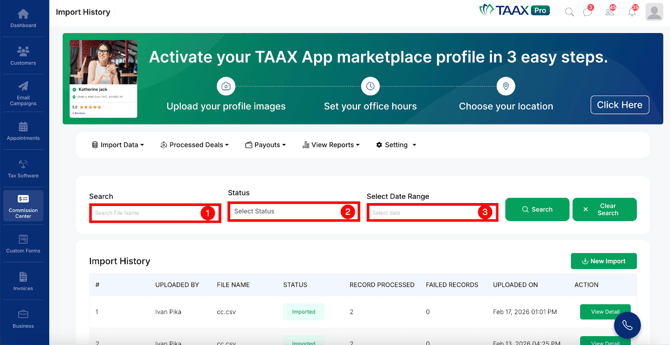
Step 2: Use the available filters to search for specific files:
- Search – Enter the file name to search for a specific import file.
- Status – Select a status to filter records based on their processing status.
- Select Date Range – Choose a date range to filter records based on the upload date.
Step 3: Click the Search button to apply the selected filters.
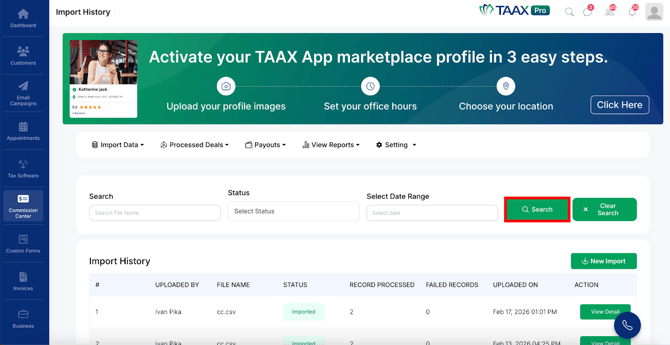
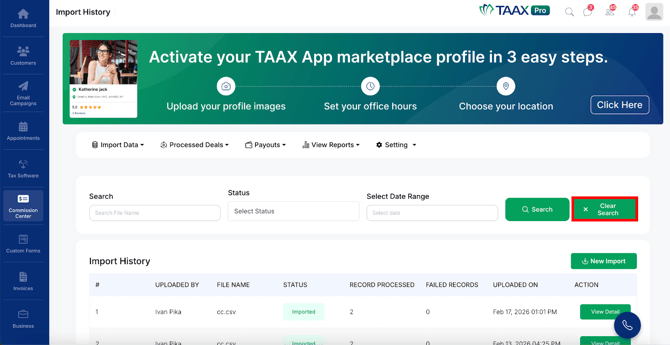
Step 4: Click Clear Search to remove filters and display all records.
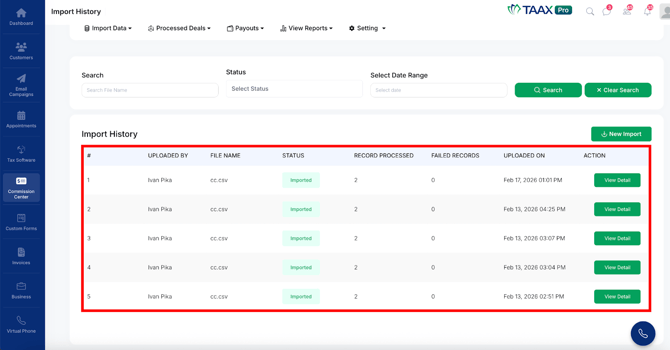
Step 5: Review the import records displayed in the table, which includes details such as Uploaded By, File Name, Status, Records Processed, Failed Records, and Uploaded On.
Info: If you want to upload a new file directly from this page, click the New Import button. The system will redirect you to the New Import page where you can upload a new CSV file for processing.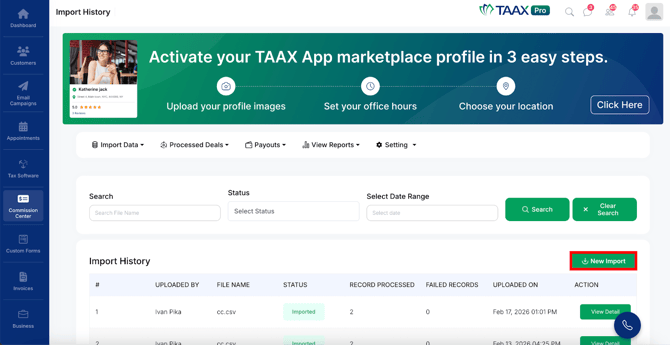
Step 6: Click the View Detail button in the Action column to view more information about a specific import record.
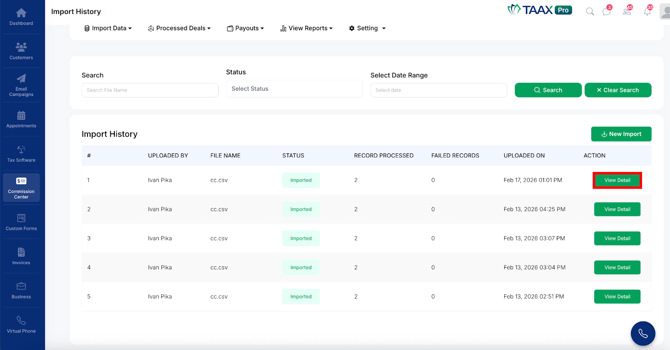
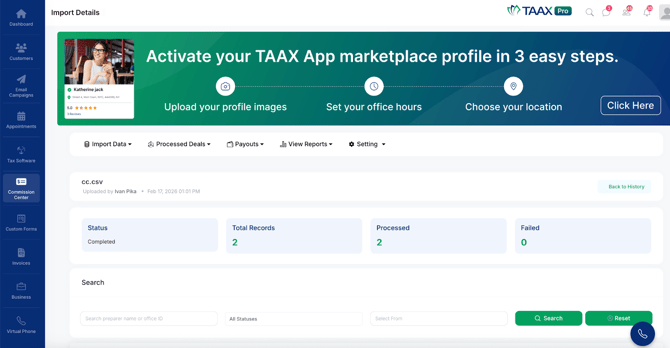
After clicking the View Detail button, the Import Details page will open, displaying detailed information about the selected import file, including the imported records and their processing status.
Failed Imports
The Failed Imports section allows users to review records that were not processed successfully during the import process. This helps users identify data errors, correct the information, and ensure that all records are eventually imported properly.
Step 1: Navigate to Import Data and click Failed Imports to open the Failed Deal Records page.
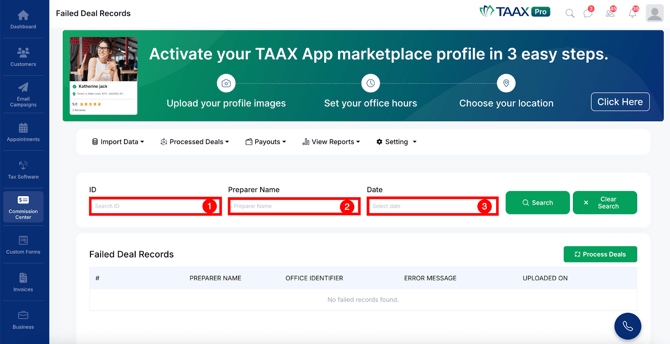
Step 2: Use the available filters to search for specific records:
- ID – Enter the record ID to search for a specific record.
- Preparer Name – Enter the preparer name to filter records by preparer.
- Date – Select a date to filter records based on the upload date.
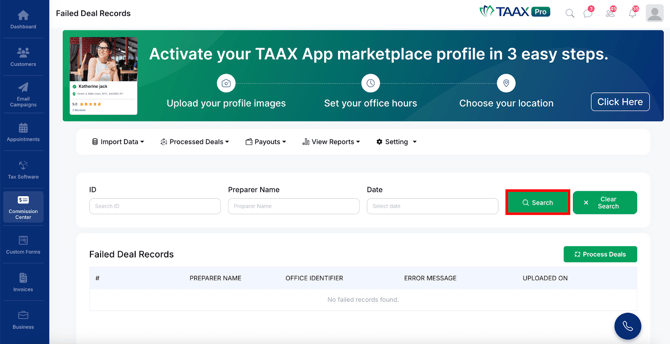
Step 3: Click the Search button to apply the selected filters.
Step 4: Click Clear Search to remove all filters and display all failed records.
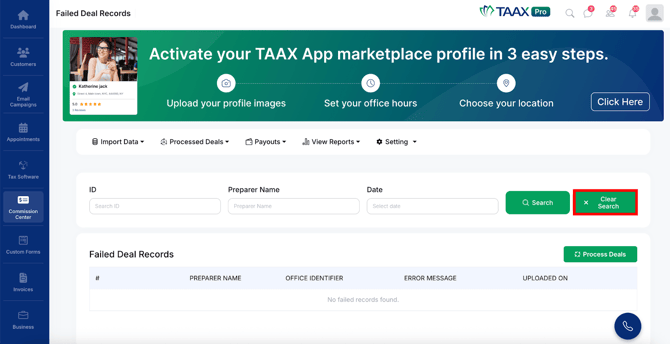
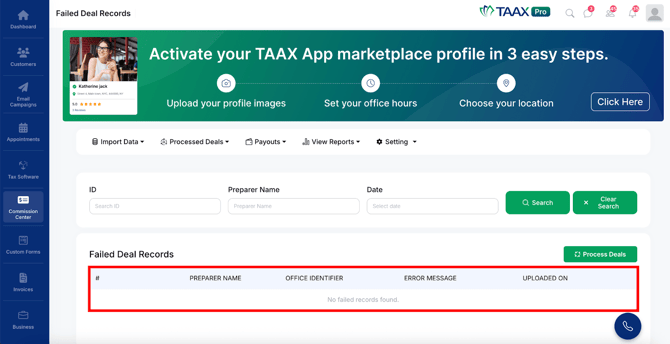
Step 5: Review the failed records displayed in the Failed Deal Records table, which includes the Preparer Name, Office Identifier, Error Message, and Uploaded On.
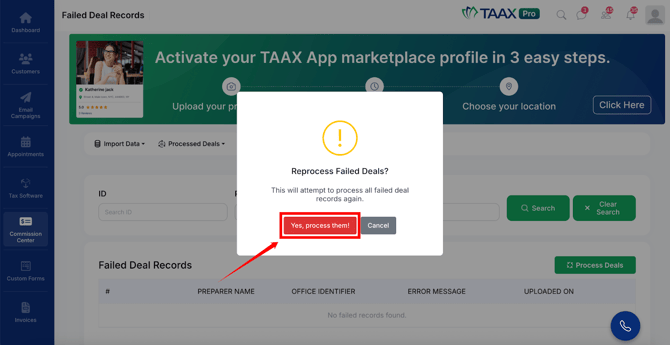
Step 6: To reprocess the failed records, click the Process Deals button located at the top right of the table.
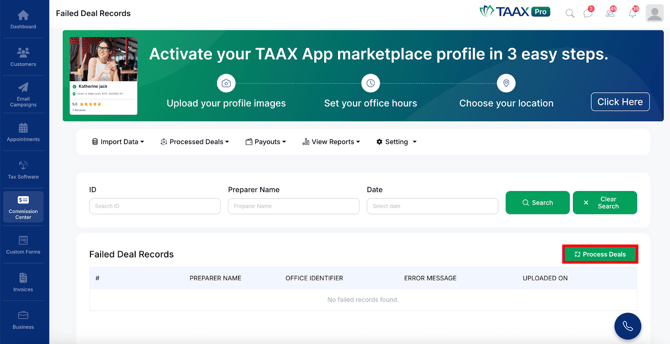
Step 7: A confirmation dialog box will appear asking if you want to reprocess all failed deal records. Click Yes, Process Them! to begin reprocessing, or click Cancel to go back.