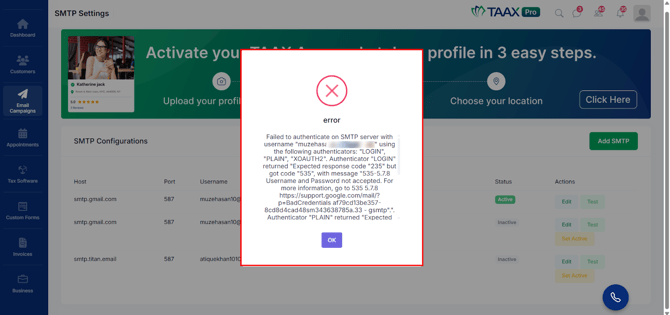
SMTP configuration allows you to connect your email account with TAAX Pro so that the platform can send emails for campaigns, notifications, and other communications. By configuring SMTP settings, emails sent from the platform will be delivered through your preferred email service.
Setting up SMTP ensures that emails are sent reliably and appear from your configured email address.
The following steps explain how to configure SMTP settings in TAAX Pro.
Step 1: From the Dashboard, navigate to Email Campaigns in the left-side navigation panel and click SMTP Configuration.
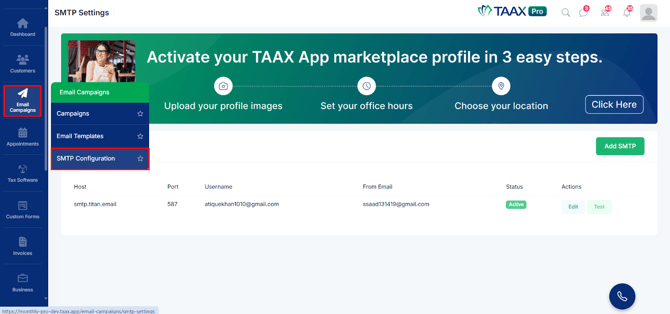
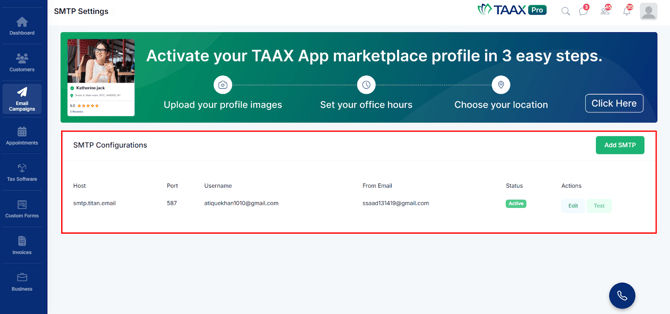
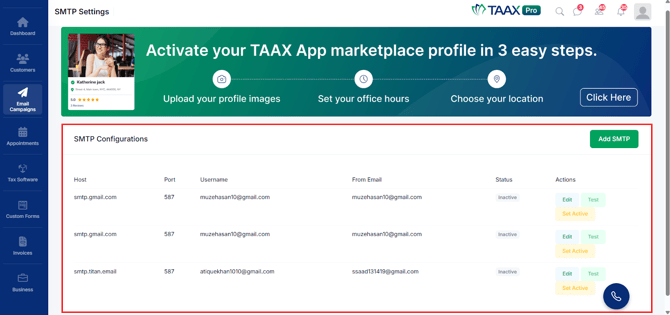
Step 2: After clicking the SMTP Configuration option, the SMTP Configurations page will open. Here you can view all configured SMTP connections along with details such as Host, Port, Username, From Email, and Status.
If you are a new user and have not configured SMTP yet, the list will appear empty.
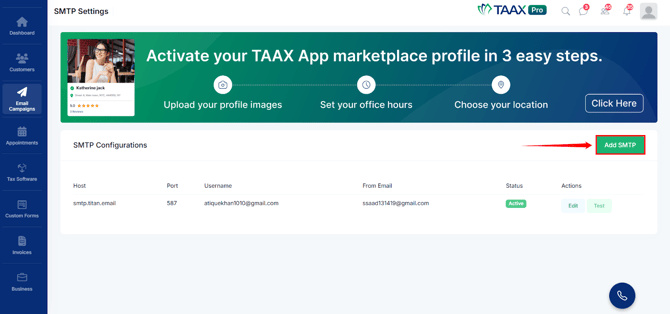
Step 3: On the SMTP Configurations page, click the Add SMTP button located on the top-right side of the screen.
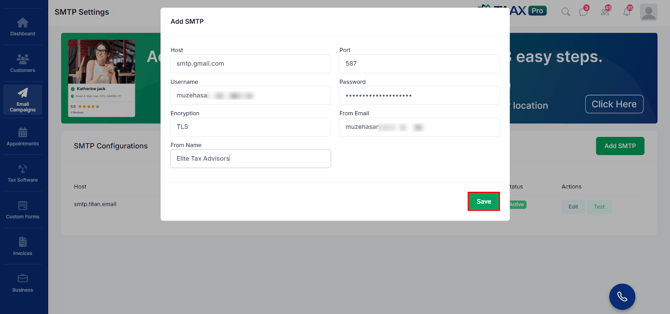
Step 4: After clicking Add SMTP, the SMTP Configuration form will open. Here you need to enter the required SMTP details provided by your email service provider.
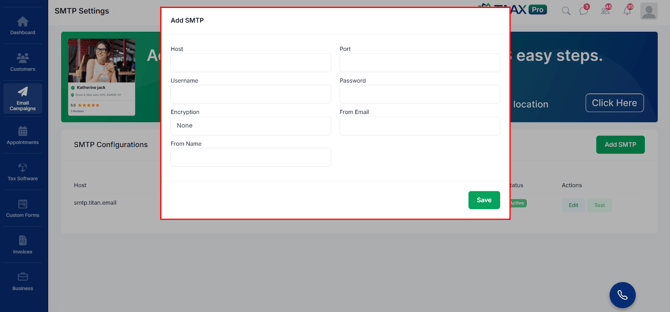
Step 5: In the Host field, enter the SMTP server address of your email provider.
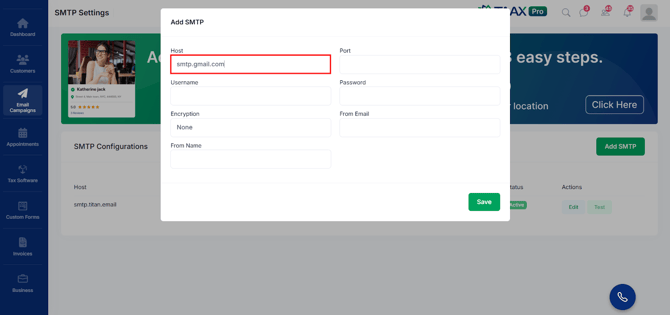
Step 6: In the Port field, enter the SMTP port number used by your email provider.
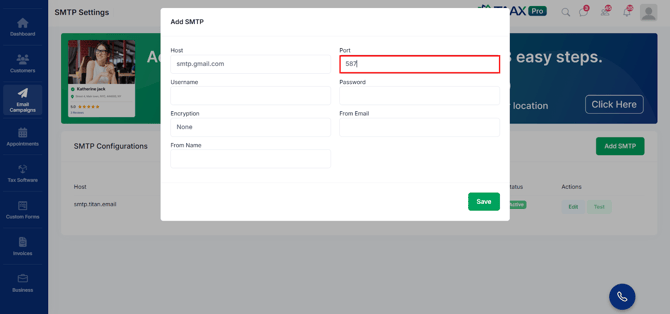
Step 7: In the Username field, enter the email address used for sending emails.
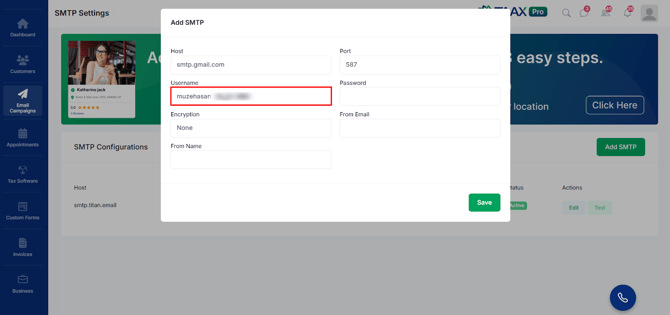
Step 8: In the Password field, enter the password or app password associated with the email account.
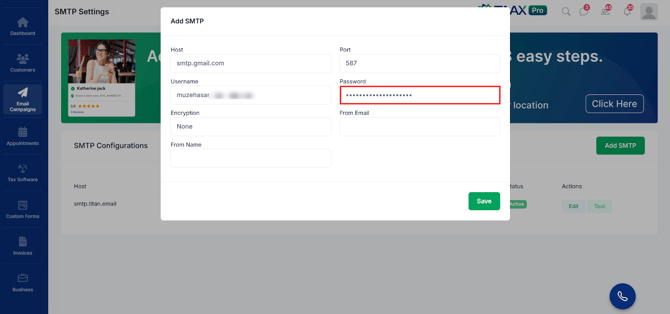
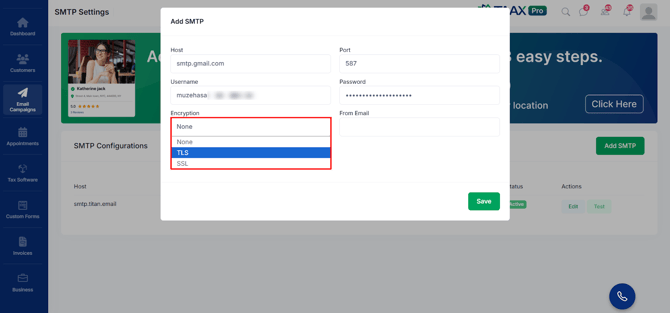
Step 9: In the Encryption field, select the encryption method required by your email provider.
Common options include:
- None – No encryption is used for the SMTP connection.
- SSL – Uses Secure Sockets Layer to encrypt the email connection for secure communication.
- TLS – Uses Transport Layer Security to encrypt the connection and is commonly used with modern email services.
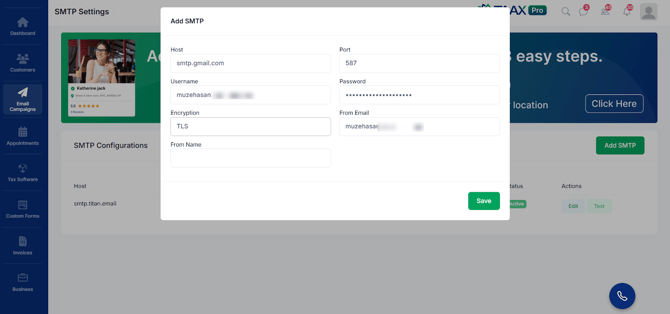
Step 10: In the From Email field, enter the email address that will appear as the sender when emails are sent through the platform.
Step 11: In the From Name field, enter the name that recipients will see as the sender of the email.
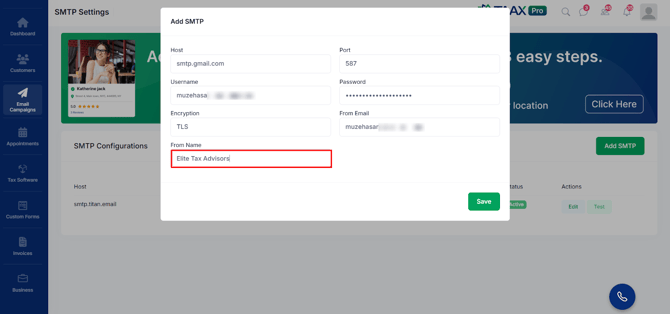
Step 12: Once all required details are entered, click the Save SMTP button to store the configuration.
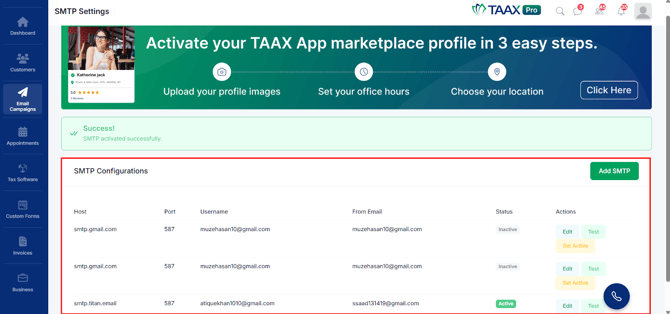
After saving, the SMTP configuration will appear in the SMTP Settings list with its status.
Edit SMTP Configuration
If you need to update the SMTP server details, you can edit the existing configuration from the SMTP Configurations page. This allows you to modify information such as host, port, username, password, or sender details whenever required.
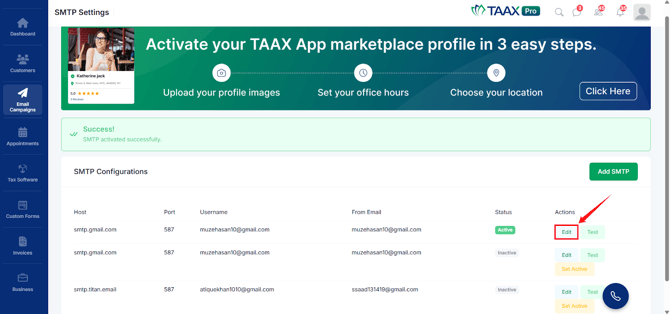
Step 1: Click the Edit option next to the SMTP configuration you want to modify.
Step 2: The SMTP Configuration form will open where you can update the SMTP details.
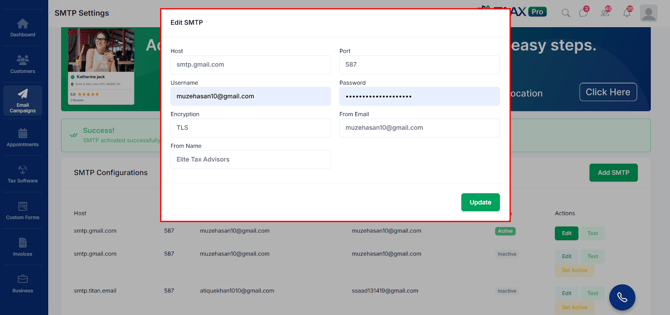
Step 3: After making the required changes, click the Update button to save the updated settings.
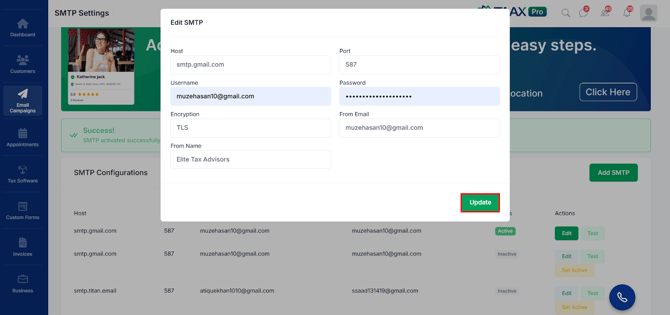
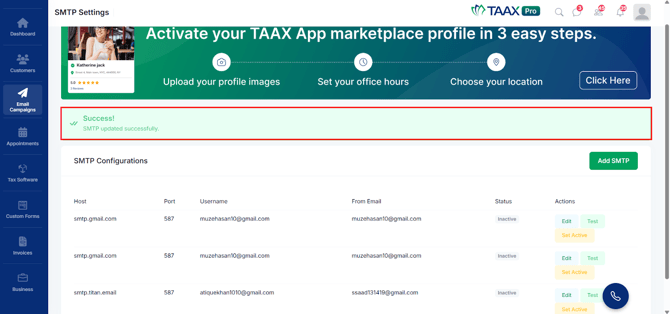
Step 4: After updating the SMTP settings, a success message will appear on the screen confirming that the SMTP configuration has been updated successfully.
Set SMTP as Active
If multiple SMTP configurations are added, you can set one SMTP as Active. The active SMTP will be used by the system to send emails. When you activate one SMTP configuration, all other SMTP configurations will automatically become In-active.
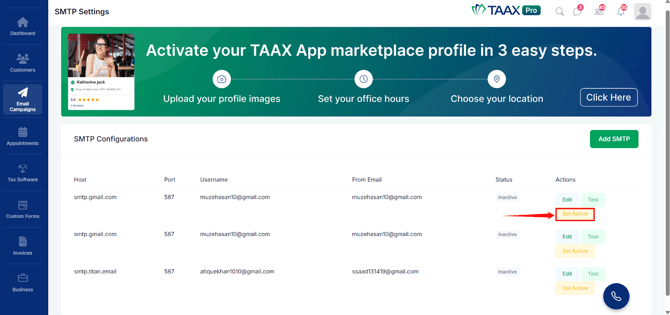
Step 1: On the SMTP Settings page, locate the SMTP configuration you want to activate.
Step 2: Click the Set Active button in the Actions column.
Step 3: The selected SMTP configuration will be marked as Active, and all other SMTP configurations will automatically be set to Inactive.
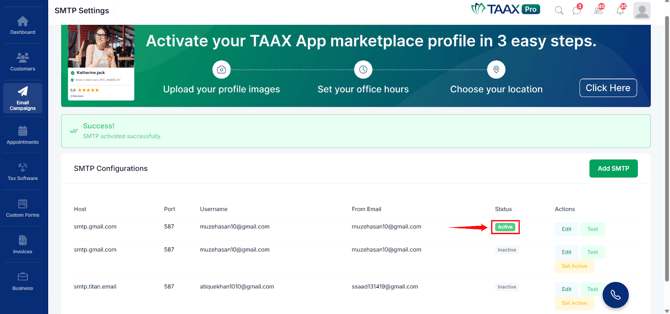
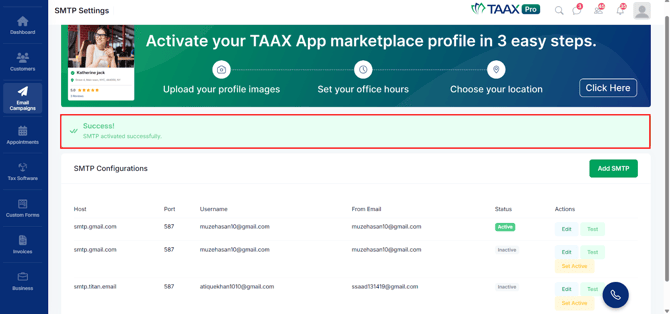
Step 4: A success message will appear on the screen confirming that the SMTP configuration has been activated successfully.
Test SMTP Configuration
Testing SMTP configuration allows you to verify that your email server settings are working correctly. This helps ensure that the system can successfully send emails using the configured SMTP server before running campaigns or sending notifications.
Step 1: Click the Test option next to the configured SMTP connection.
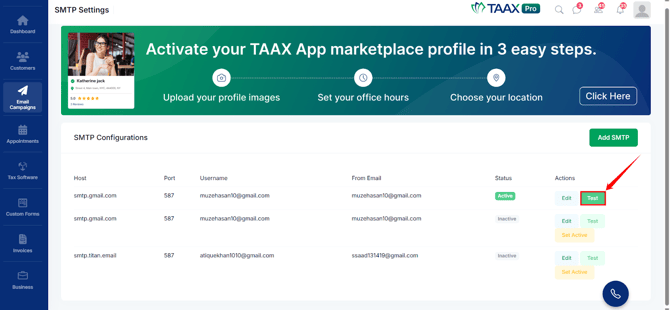
Step 2: After clicking the Test button, a popup window will appear asking you to enter the email address where the test email should be sent.
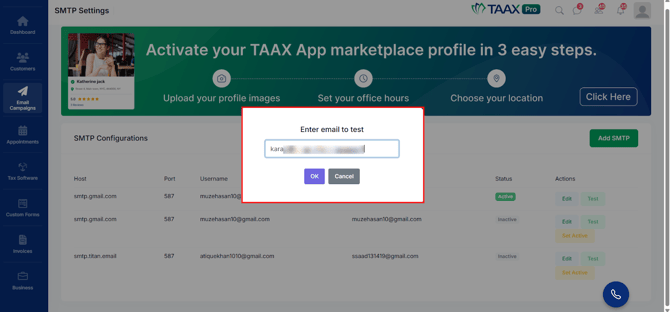
Step 3: Enter the email address and click the OK button to send the test email.
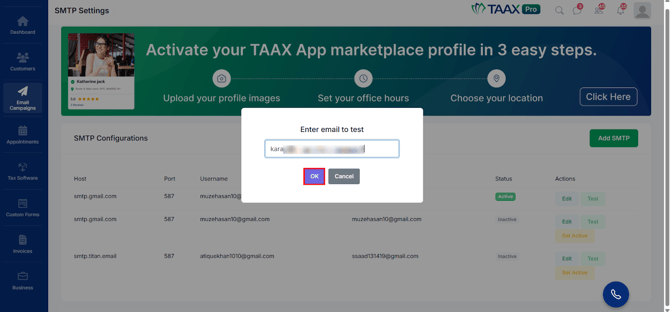
Step 4: After clicking OK, the system will attempt to send a test email using the configured SMTP settings. A success message will appear if the email is sent successfully, or an error message will appear if there is an issue with the SMTP configuration.