The Commission Center in TAAX Pro allows you to manage commissions, track payouts, monitor users, and analyze performance from a single dashboard. It provides a clear view of earnings, pending commissions, and payout activities, helping you stay in control of your financial operations.
The following steps explain how to access and use the Commission Center in TAAX Pro.
Access Commission Center
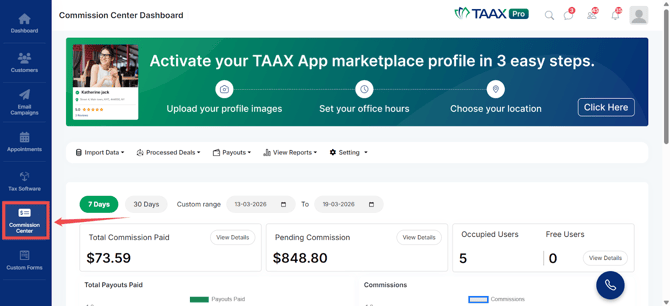
Step 1: From the Dashboard, navigate to the left-side navigation panel and click on Commission Center.
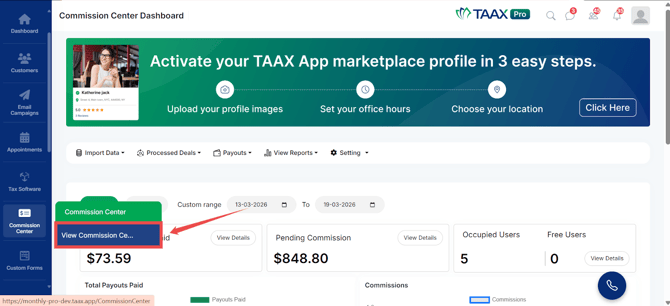
Step 2: Click on View Commission Center. The Commission Center Dashboard will open.
Commission Center Dashboard Overview
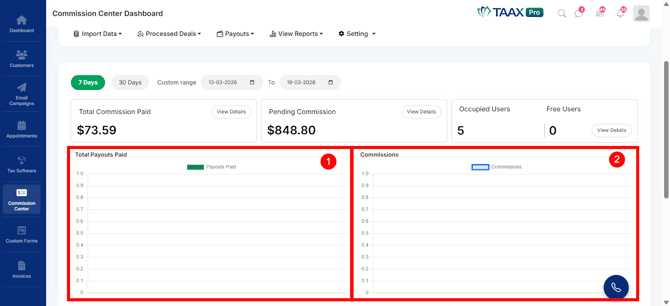
After opening the dashboard, you will see key performance metrics and reports.
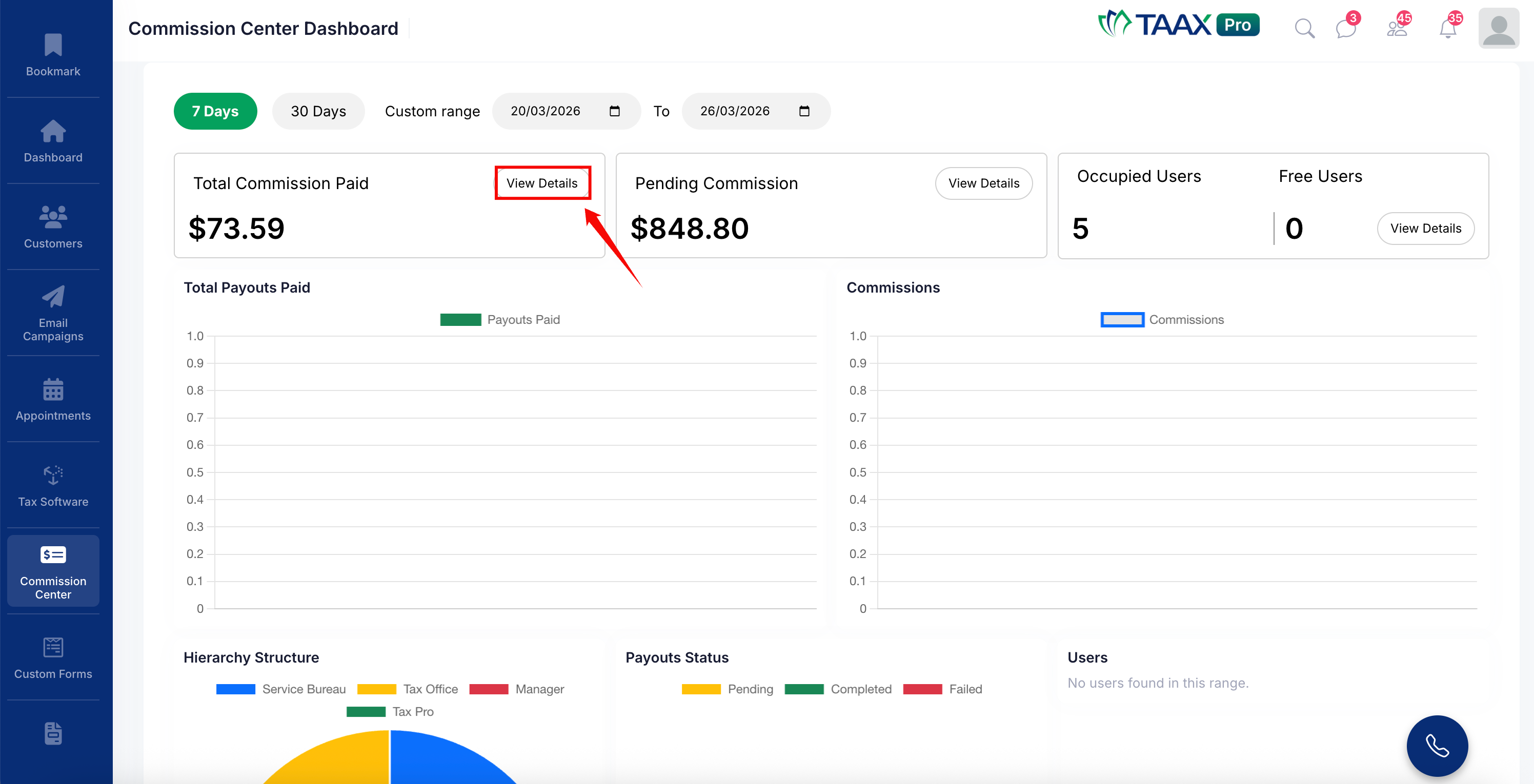
Step 1: At the top, you can view summary cards, including:
- Total Commission Paid – Displays the total amount of commission already paid.
- Pending Commission – Displays commissions that are yet to be paid.
- Occupied Users – Shows the number of active or assigned users.
- Free Users – Shows the number of available or unassigned users.
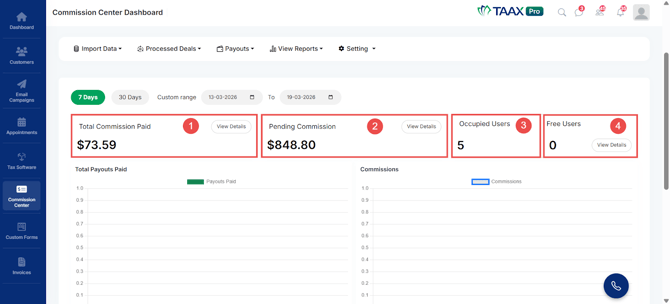
Step 2: Each card includes a View Details button to access more detailed information.
Filter Data by Date Range
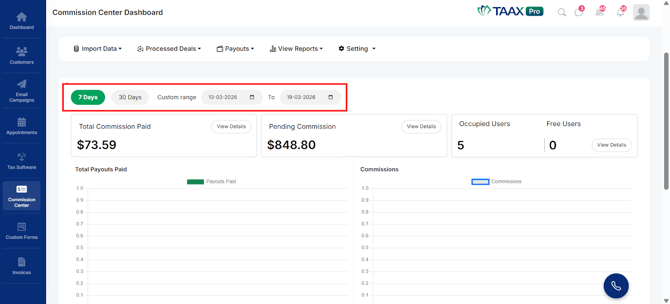
Step 1: On the dashboard, locate the date filter options. Select one of the following options:
- 7 Days – View data for the last 7 days
- 30 Days – View data for the last 30 days
- Custom Range – Select a specific date range
Choose the start and end dates when using the custom range option.
Import Data
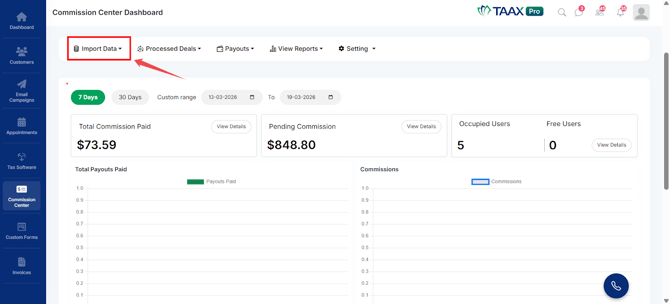
The Import Data option allows you to upload commission-related data into the system.
Step 1: Click on Import Data from the top menu.
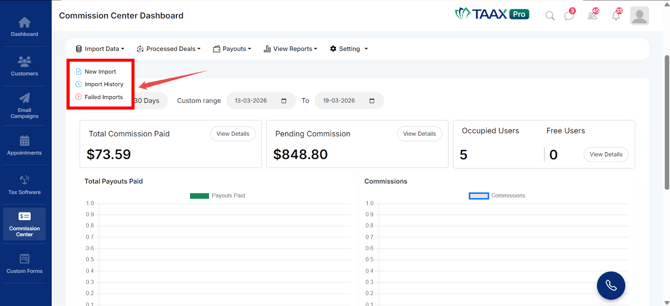
Step 2: Select one of the following options:
- New Import – Upload new commission data
- Import History – View previously imported records
- Failed Imports – View records that failed to import
View Processed Deals
Processed Deals shows all completed commission-related transactions.
Step 1: Click on Processed Deals from the top menu.
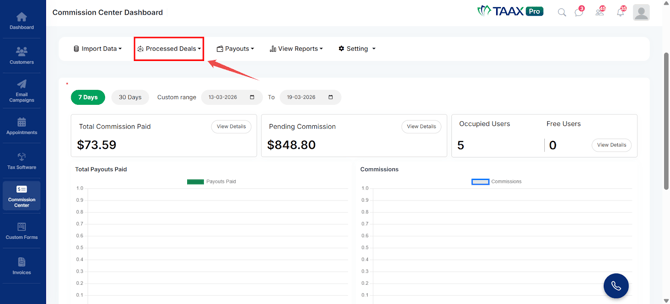
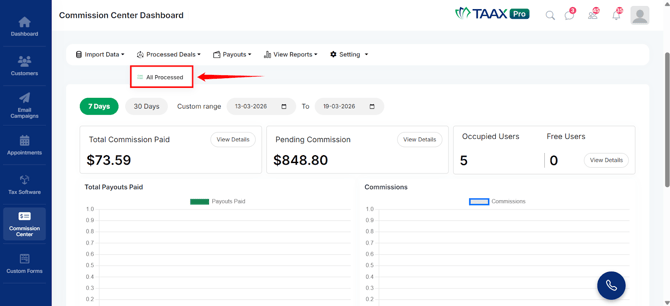
Step 2: Select All Processed to view all processed deals.
Manage Payouts
The Payouts section helps you manage and track commission payments.
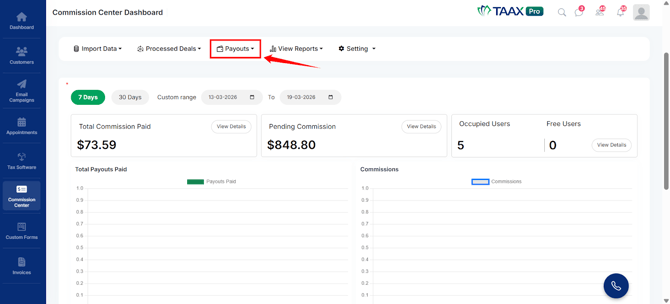
Step 1: Click on Payouts from the top menu.
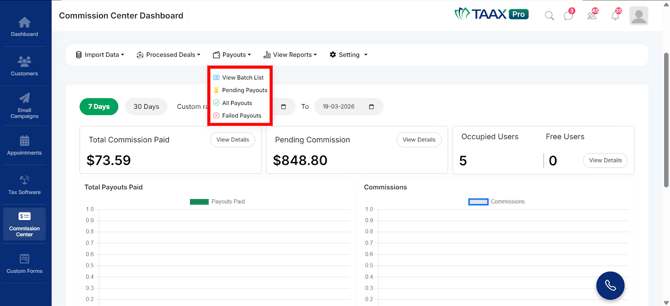
Step 2: Select one of the following options:
- View Batch List – View grouped payout batches
- Pending Payouts – View payouts that are yet to be processed
- All Payouts – View all payout records
- Failed Payouts – View payouts that failed
View Commission Reports
Step 1: Click on View Reports from the top menu.
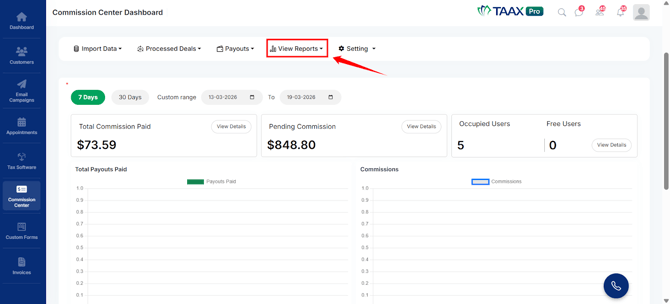
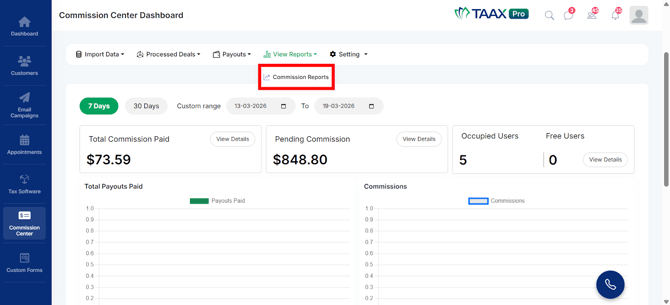
Step 2: Select Commission Reports to view detailed reports and analytics.
Settings
The Settings section allows you to configure commission rules and manage users.
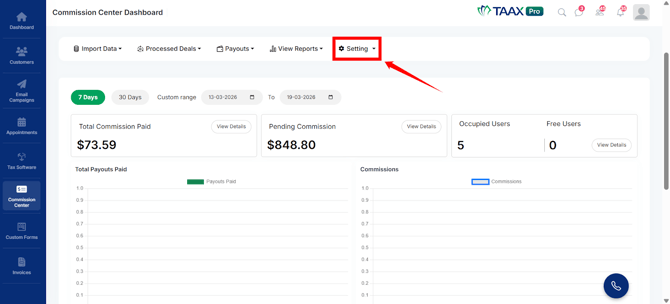
Step 1: Click on Settings from the top menu.
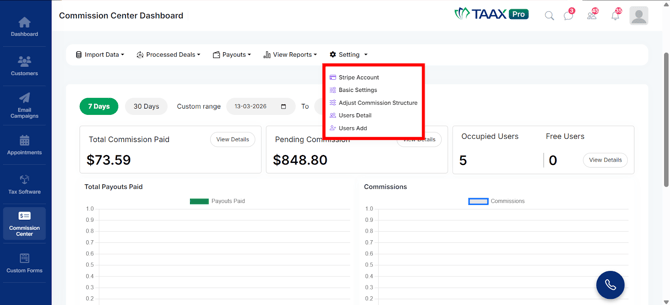
Step 2: Select one of the following options:
- Stripe Account – Connect or manage your payment account
- Basic Settings – Configure general settings
- Adjust Commission Structure – Define or update commission rules
- Users Detail – View user information
- Users Add – Add new users
Dashboard Reports and Charts
The Commission Center dashboard includes visual reports for better analysis.
Step 1: View financial performance charts:
- Total Payouts Paid – Displays payout trends over time
- Commissions Graph – Shows overall commission activity
Step 2: View operational and user insights:
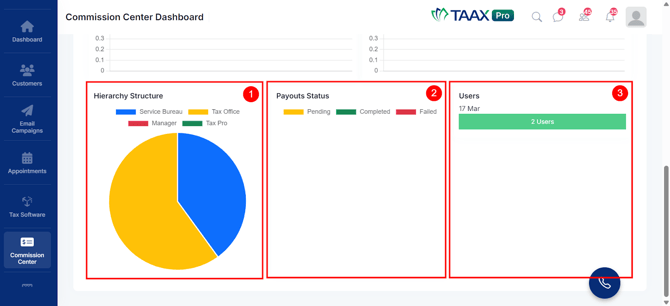
- Hierarchy Structure – Displays roles such as Service Bureau, Tax Office, Manager, and Tax Pro
- Payout Status – Shows Pending, Completed, and Failed payouts
- User Activity – Displays user engagement data