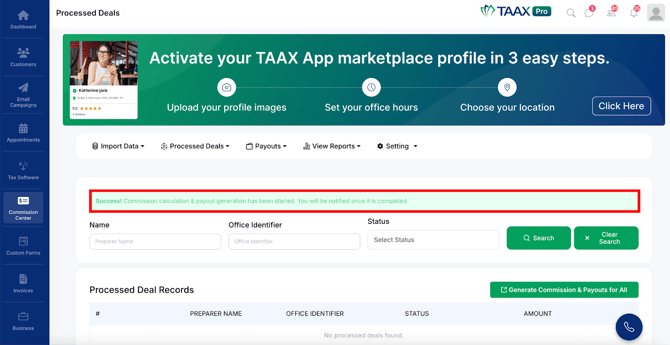
The Processed Deals section in TAAX Pro allows you to view all successfully processed deal records along with their commission details. It helps you track completed transactions, verify processed data, and generate commissions and payouts efficiently.
The following steps explain how to access and use the Processed Deals section:
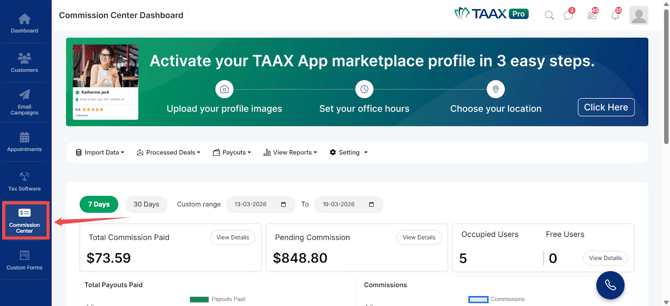
Step 1: From the Dashboard, navigate to the left-side navigation panel and click on Commission Center.
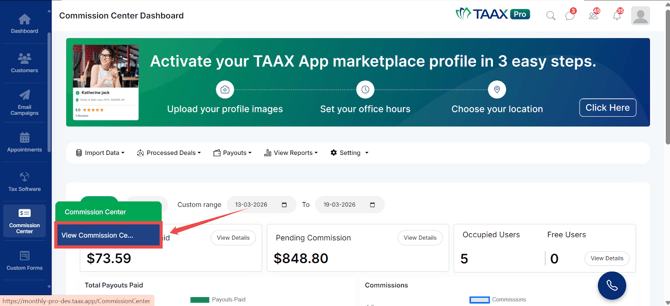
Step 2: Click on View Commission Center. The Commission Center Dashboard will open.
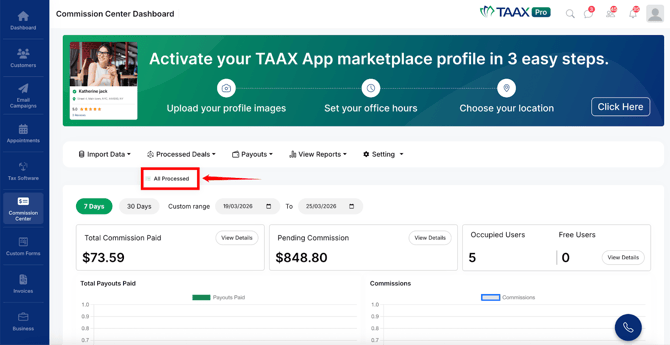
Step 3: On the Commission Center Dashboard, navigate to the top menu and click on Processed Deals.
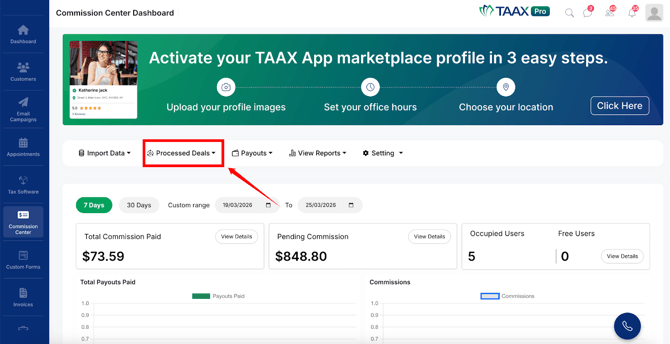
Step 4: Click on All Processed to open the Processed Deals page where all completed deal records are displayed.
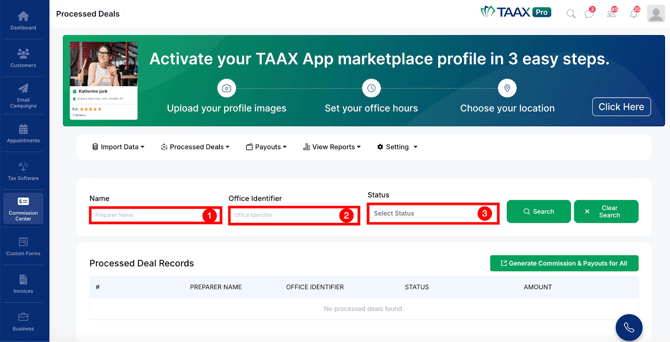
Step 5: The Processed Deals page will open. Use the available filters to search for specific records:
- Name – Enter the preparer name to search for deals associated with a specific preparer.
- Office Identifier – Enter the office identifier to filter deals based on office.
- Status – Select a status from the dropdown to filter deals based on their processing status.
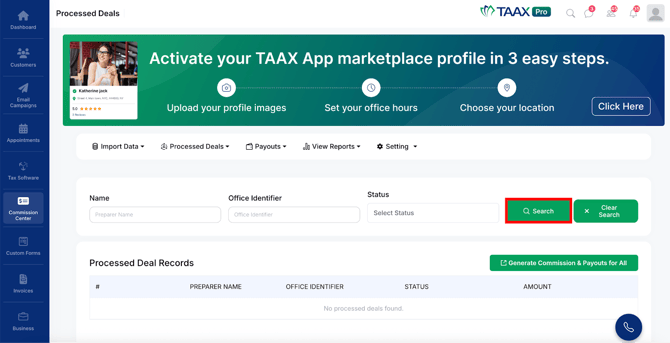
Step 6: Click the Search button to apply the selected filters.
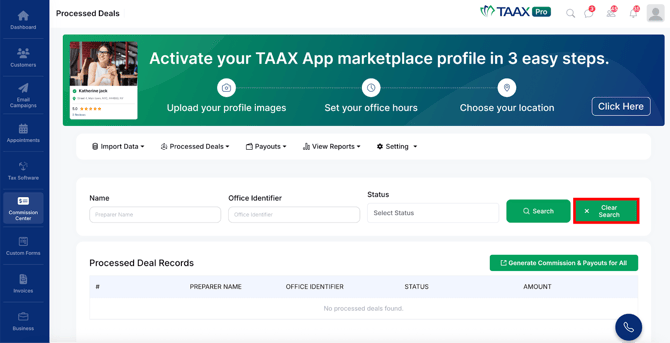
Step 7: Click Clear Search to remove all filters and display all processed records.
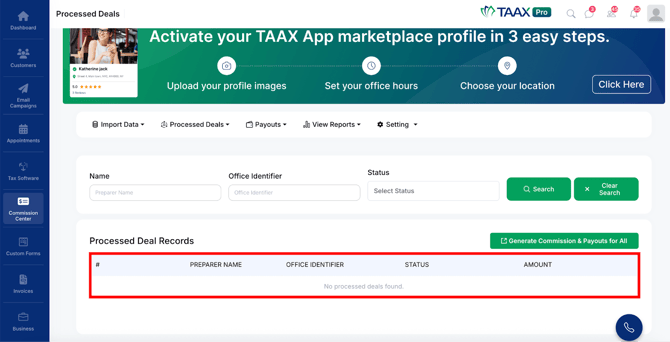
Step 8: Review the processed records displayed in the Processed Deal Records table, which includes details such as Preparer Name, Office Identifier, Status, and Amount.
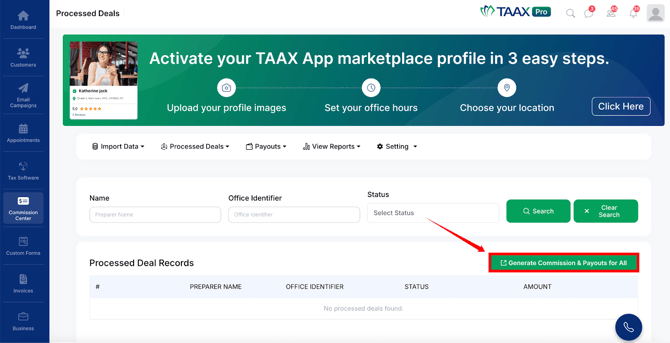
Step 9: To generate commissions and payouts for all processed deals at once, click the Generate Commission & Payouts for All button located at the top right of the table.
Step 10: A confirmation dialog box will appear asking if you want to generate commissions for all eligible deals. Click Yes, Generate! to proceed.
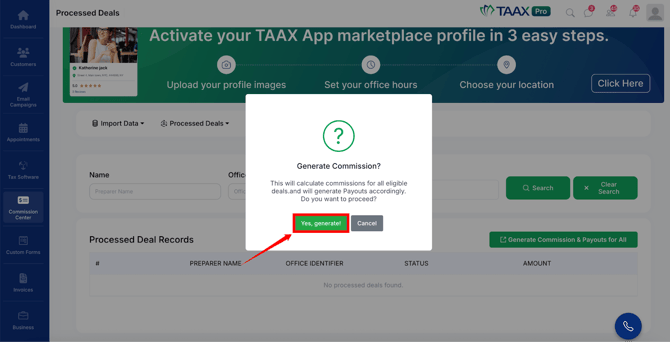
After clicking Yes, Generate!, a success message will appear on the page confirming that the commission calculation and payout generation has been started. You will be notified once the process is completed.